
LTMS Medical Certificate Not Showing: How to Fix It in 2026
Many drivers in the Philippines are trying to renew their licenses online, but one common problem keeps coming up: “My medical certificate isn’t showing in my LTMS account.” This can stop your renewal from moving forward, and it’s one of the most frustrating issues people face.
The good news is this problem usually has simple solutions. In this guide, you’ll learn the top reasons why your medical certificate isn’t showing and how to fix it step by step.
Why Your Medical Certificate Must Show in LTMS
Before we dive into fixes, here’s why this matters:
The LTO requires a medical certificate for driver’s license renewal. This certificate confirms that you are fit to drive. But even if you uploaded it, it might not appear correctly in your LTMS Portal or eGovPH app, and that can block renewal.
You can also read: How to Find Your LTO Client ID in 2026 (Latest Update Guide)
Common Reason 1: You Uploaded It to the Wrong Place
Many drivers upload their medical certificate in the wrong section or system, especially if they use both LTMS and the eGovPH app.
Fix: Log in to your LTMS account and upload the medical certificate in the “Medical Certificate” or “License Renewal” section specifically. Do not just upload it anywhere.
Common Reason 2: The File Format Is Not Accepted
LTMS has limits on file types and size. If your file is too large, or in the wrong format, the system may fail to read it.
Tips for upload success:
If your file is blurry or the system can’t read it, it may not show up.
Common Reason 3: The Certificate Is Not Approved Yet
Sometimes the medical certificate uploads, but it still needs to be approved in the system before it shows up in your renewal requirements.
If the certificate is still pending approval, it won’t appear as “complete” in the system.
Fix: Wait for a short time (sometimes a few hours to a day) for the system to process it. If it’s still not showing after 24 hours, try re‑uploading it following the tips above.
Common Reason 4: Your Account Details Don’t Match
This happens when your medical certificate has different details than what’s in your LTMS account — like a different name spelling, birth date, or license number.
If the system sees a mismatch, it may not link the certificate properly.
Fix:
Common Reason 5: Browser or App Problems
Sometimes the certificate is uploaded correctly, but your browser or app doesn’t show it because of:
Fix:
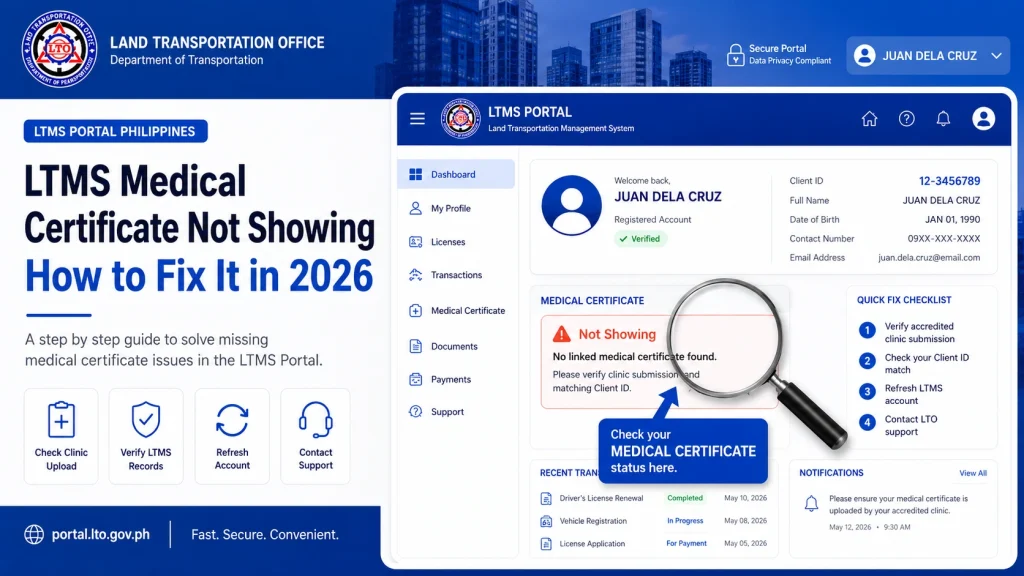
Step‑by‑Step Fix for LTMS Medical Certificate Issues
Here’s a quick checklist you can follow:
FAQs
Conclusion
The most common reason for a medical certificate not showing up in LTMS is a simple upload or format issue. By following the clear steps above and using the right file type, you can usually fix it yourself.
Make sure your details match, upload in the correct section, and check again after a short wait. With the right approach, you can move forward with license renewal without delays.
If you want this version turned into a WordPress SEO draft with meta title, description, and structured headings for ranking, just tell me!


