
LTMS Registration: Why Your Details Aren’t Showing Up (2026)
The LTMS Portal is a convenient platform for managing your driver’s license, vehicle registration, and other LTO services. However, one of the most common issues users face is that their details aren’t showing up on the portal. Whether it’s your driver’s license information, vehicle registration, or other updates, this issue can be frustrating. In this guide, we’ll explore the common reasons why your registration details might not be showing up and how to fix it.
Common Reasons Your LTMS Registration Details Aren’t Showing Up
One of the most common reasons why your registration details aren’t showing up is a delay in syncing data between the LTO system and the LTMS Portal. After registration, updates to your information (like driver’s license renewals or vehicle registration updates) may take time to reflect on the portal.
How to fix it:
Check for maintenance: Visit the LTO website or check their social media accounts for any maintenance announcements that might be causing delays in the sync process.
Wait 24-48 hours: Sometimes, the LTO system processes updates in batches. Give it some time (up to 48 hours) for your data to appear on the portal.
Another common cause for missing details is that the personal information you entered in the LTMS Portal does not match the records in the LTO database. This mismatch can happen if there’s a typo in your name, date of birth, or other details.
How to fix it:
Contact LTO support: If you find any discrepancies or if your information is still missing after checking, contact LTO customer support to correct the records in their system.
Double-check your details: Ensure that your name, date of birth, address, and other personal information entered on the LTMS Portal matches exactly what is in the LTO records (e.g., your driver’s license).
Sometimes, missing details occur because the registration process hasn’t been completed fully. For example, if you’ve only filled out part of your registration form or missed uploading documents, it may result in incomplete or missing data.
How to fix it:
Submit missing documents: If documents were missed during the initial registration, upload them to the LTMS Portal.
Check your registration status: Go to the LTMS Portal dashboard and check if there are any pending tasks or incomplete sections that need to be finished.
Complete all required fields: Make sure you’ve filled out all the necessary forms and uploaded the required documents (e.g., proof of identity, proof of address).
If you are trying to register a vehicle or renew your driver’s license and your details aren’t showing up, it could be due to issues with document uploads. This can include incorrect file formats, file size limitations, or poor quality of scanned documents.
How to fix it:
Ensure document clarity: Documents must be clear and legible. Poor quality scans or blurry photos can cause them to be rejected. Re-upload clear and high-quality scans or photos of your documents.
Ensure the correct file format: Verify that the documents are in an acceptable format (usually JPEG, PNG, or PDF).
Check file size limits: Make sure the documents do not exceed the size limit. Typically, documents should be under 2MB.
Sometimes, browser issues or cached data can prevent updates from showing up on the LTMS Portal. If your browser is storing old data, it may not reflect the latest information.
How to fix it:
Use Incognito Mode: Try opening the LTMS Portal in Incognito or Private Mode, which avoids any cached data from interfering.
Clear your browser cache: Go to your browser settings and clear the cache and cookies to make sure you’re viewing the most up-to-date version of the LTMS Portal.
Try a different browser: Use a different browser (e.g., Chrome, Firefox, or Safari) to see if the issue persists.
At times, the LTMS Portal may experience technical issues or bugs that cause information not to be displayed correctly. These errors are typically on the portal’s end and can happen due to server problems or updates.
How to fix it:
Try accessing the portal later: If there’s a system issue, it may be resolved after a few hours or days. Try logging in again after some time.
Log out and log back in: Sometimes, simply logging out of the LTMS Portal and logging back in can resolve temporary issues.
Check for system maintenance: Visit the official LTO website or LTMS social media pages for updates on any maintenance or technical difficulties affecting the portal.
You can also read: LTMS Portal Help: How to Recover a Lost Client ID Update 2026
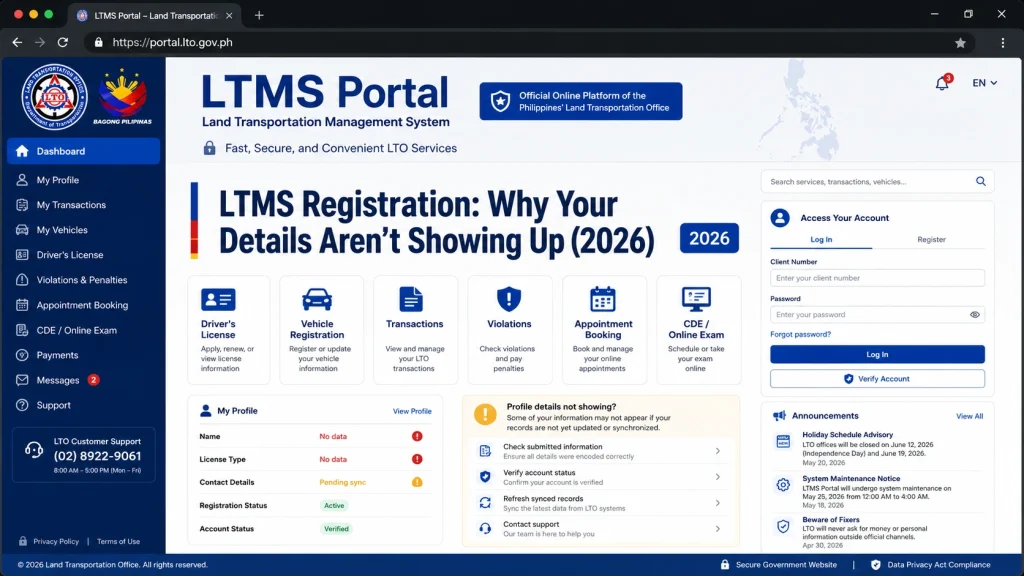
Step-by-Step Guide to Fix Missing Data on LTMS Portal
Step 1: Verify Your Personal Information
Log in to your LTMS Portal account.
Check the Profile or Personal Information section to ensure all details are correct and match your official LTO records.
Correct any discrepancies if you find them.
Step 2: Complete Any Pending Tasks
Check for any pending tasks or missing documents in your LTMS Portal dashboard.
Complete all required actions, such as uploading missing documents or paying necessary fees.
Step 3: Clear Cache and Try a Different Browser
Clear your browser cache or try logging in using a different browser or device.
Try accessing the portal in Incognito Mode to avoid cached data causing issues.
Step 4: Wait for Data Sync
Wait for 24-48 hours for any delayed data syncs to appear on the portal.
If the issue persists, contact LTO customer support for further assistance.
FAQs
Conclusion
If your LTMS registration details aren’t showing up, the issue may be related to delayed data syncs, incorrect personal information, pending tasks, or browser cache problems. By following the steps outlined above, you can resolve most issues and get your information updated quickly. If the problem persists, don’t hesitate to contact LTO customer support for assistance.


