
Wrong Info in LTMS? How to Correct It Latest Update (2026)
If you’ve noticed incorrect details in your Land Transportation Management System (LTMS) account, such as a misspelled name, wrong address, or outdated vehicle information, don’t worry! You can easily correct it to ensure your records are up-to-date.
In this article, we’ll guide you through the process of fixing any incorrect information in your LTMS account, whether it’s related to your driver’s license, vehicle registration, or personal details.
Common Errors in LTMS Accounts
Here are some of the most common issues that users report in the LTMS portal:
Misspelled name or wrong personal details
(e.g., incorrect date of birth, address, etc.)
Incorrect vehicle information
(e.g., vehicle registration number, make, model, etc.)
Inaccurate driver’s license details
(e.g., license number, expiry date, etc.)
Missing or outdated medical information
required for license renewals
Address mismatch
(e.g., the address on your sales invoice doesn’t match the one in your LTMS profile)
These mistakes can cause problems when trying to renew your driver’s license, register vehicles, or complete any other LTMS-related tasks. Luckily, fixing them is simple.
You can also read: Solve LTMS Login Issues: No Email, No Client ID Update (2026)
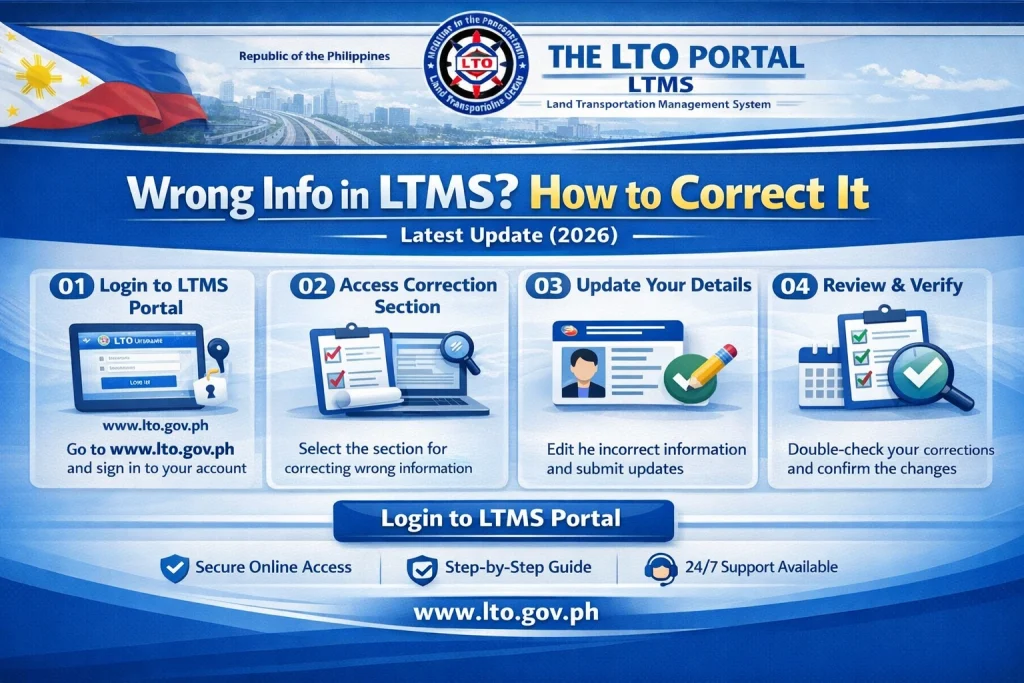
Steps to Correct Wrong Information in LTMS
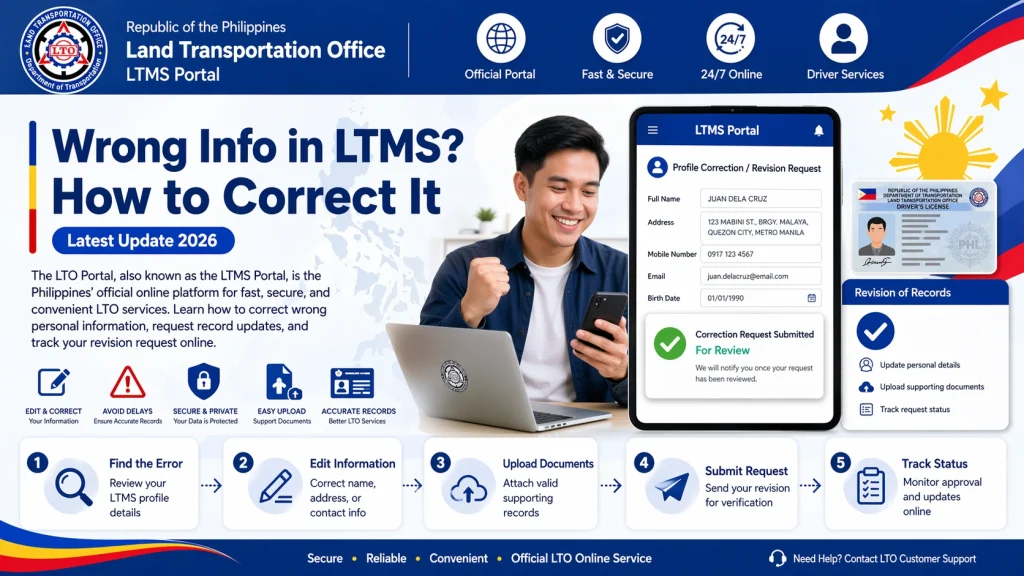
Step 1: Log Into Your LTMS Account
The first step to correcting wrong information is to log into your LTMS account. If you don’t have an account yet, you’ll need to register first before making any corrections.
Step 2: Check Your Profile and Identify the Errors
Once you’re logged in, navigate to your profile settings to review the information stored in your account. Look for any incorrect details, such as:
Make sure to double-check everything to ensure you’re not missing any important details.
Step 3: Correct the Information
For Driver’s License and Personal Information:
For Vehicle Registration:
Step 4: Submit the Changes
After making the corrections, you may be prompted to submit supporting documents to verify your updated information. These documents could include:
Once submitted, LTO will process your request, which can take a few days to a week.
Step 5: Verify the Changes
After submitting your corrections, you’ll need to wait for LTO to review and approve your updates. You’ll receive a confirmation email once your information has been updated in the system.
It’s a good idea to log back into your LTMS account after a few days to ensure the changes were made successfully.
What to Do If You Can’t Correct Information Yourself
If you’re unable to make the corrections online or if the system doesn’t allow you to update certain details (such as birthdate or name), you’ll need to visit an LTO office.
At the LTO office, you can:
FAQs
Conclusion
Correcting wrong information in your LTMS account is an easy process as long as you follow the steps carefully. Whether it’s fixing a spelling error, updating your vehicle information, or ensuring your medical details are accurate, keeping your LTMS account up-to-date is crucial for a smooth experience when accessing LTO services.
If you encounter any problems or need additional help, don’t hesitate to reach out to LTO customer support for further assistance. They are there to help you fix any issues quickly and ensure your records are correct.


