
How to Fix Vehicle Records Not Appearing in LTMS Portal 2026
You logged in to your LTMS Portal, clicked the Vehicle section, and your car or motorcycle is not there.
Annoying, right?
Do not panic yet. In many cases, your vehicle is not lost. It may simply be not linked to your LTMS account, not fully encoded yet, or still connected to old LTO records.
The LTMS Portal is the LTO’s online system for services like licensing, vehicle records, transactions, violations, documents, and renewals. Guides from Moneymax also note that the portal has sections for Vehicle, Transactions, Violations, Documents, and other LTO services.
This guide will show you what to check first, why your vehicle record may be missing, and how to request help from LTO without wasting time.
Why Is My Vehicle Not Showing in LTMS?
Your vehicle may not appear in LTMS because it is not yet linked to your LTMS account, the dealer has not fully processed the registration, your OR/CR details do not match your LTMS profile, or your record is still in an older LTO system.
The fix is usually to check your Vehicle, Documents, and Transactions tabs first. If the vehicle is still missing, prepare your OR/CR, valid ID, LTMS email or Client ID, and send a request to LTO Client Care or visit the nearest LTO office.
A competitor guide also explains that manual linking may be needed when the vehicle is not under the Vehicles tab or when the portal shows “My Vehicle is Not Listed.”
You can also read: Verify Your Driving Course Result in LTMS – Latest Update 2026
Common Reasons Your Vehicle Record Is Missing
This is the most common reason.
Your vehicle may already be registered with LTO, but it is not connected to your personal LTMS account yet. This can happen with older vehicles, second-hand vehicles, or vehicles registered before you created your LTMS account.
If the portal cannot connect your account to the vehicle record, you may not see it under the Vehicle tab.
If you recently bought a new car or motorcycle, the dealer may still be processing your registration, OR, CR, plate details, or system encoding.
Sometimes the vehicle appears in LTMS before you receive the physical OR/CR. Other times, the OR/CR is already with the dealer, but the portal has not updated clearly for the owner yet. User discussions show this confusion is common among new vehicle buyers.
LTMS may have trouble showing your vehicle if your account information does not match the record.
Check these details:
Even a small mismatch can cause problems when linking records.
This can happen if the vehicle was previously owned by someone else, processed by a dealer, or connected to an older LTMS account.
For second-hand vehicles, make sure the ownership transfer is properly completed. If the vehicle is still under the previous owner’s record, it may not show under your account.
Some vehicle records may still need manual checking or encoding. LTO-related search results show that there have been official memoranda about motor vehicle data from older LTO IT systems needing encoding into LTMS.
So if your vehicle is older, renewed offline before, or has records from an older system, manual assistance may be needed.
For online motor vehicle renewal, requirements like the Certificate of Coverage and inspection report may need to be transmitted to LTMS. Competitor renewal guides mention that COC and PMVIC inspection reports are transmitted to the LTMS before online renewal can proceed.
This does not always mean your vehicle record is missing, but it can stop the renewal process from moving forward.
Step-by-Step: What to Check First
Before emailing LTO or going to a branch, do these checks.
Step 1: Log in to the official LTMS Portal
Go to the official LTMS Portal and log in using your LTO Client Number or registered email.
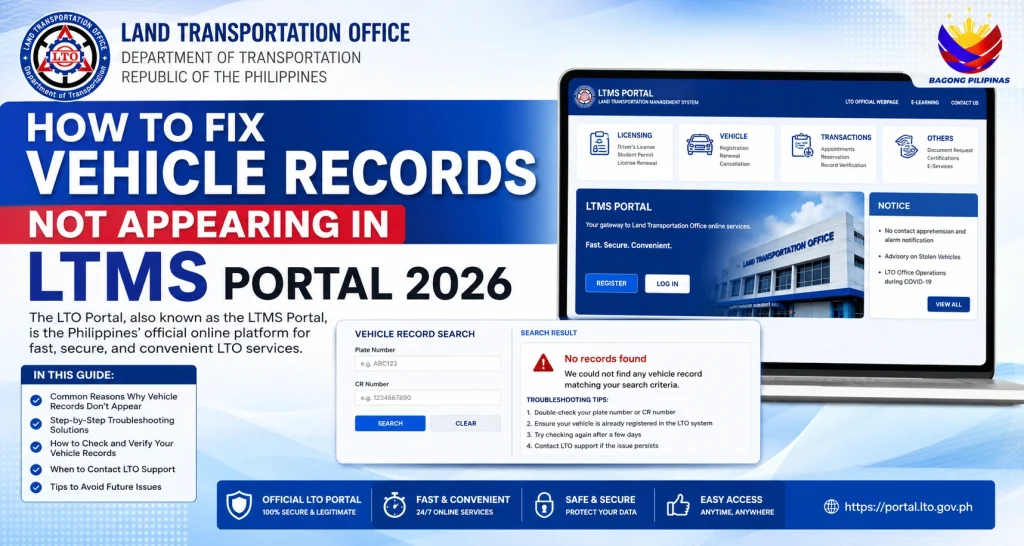
Avoid fake or lookalike websites. The official LTMS portal search result shows the LTO Official Webpage, E-Learning, Contact, Register, and Login options.
Step 2: Check the Vehicle tab
After logging in, go to:
Vehicle > Motor Vehicle > Vehicle List
Look for your vehicle using:
If nothing appears, do not stop there. Check the Documents tab next.
Step 3: Check the Documents tab
Go to:
Documents > Motor Vehicles / Official Receipts
Moneymax notes that the LTMS Documents tab lists documents related to LTO transactions and groups them into categories such as Licenses, Motor Vehicles, No Apprehensions, and Official Receipts.
Sometimes your OR or related document may appear even if the vehicle list looks incomplete.
Step 4: Check the Transactions tab
Open the Transactions section and look for open or closed vehicle-related transactions.
This can help you see if there was a past renewal, pending application, or incomplete process connected to your account.
Step 5: Compare your OR/CR with your LTMS profile
Get your physical OR/CR and compare it with your LTMS profile.
Check:
Take screenshots of the missing vehicle page and your profile details. You may need them when asking for help.
How to Fix a Missing Vehicle Record in LTMS
Option 1: Request vehicle linking through LTO Client Care
If your vehicle is registered but not showing in your account, you can request help from LTO Client Care.
Prepare these before sending your request:
A public FOI response from LTO told a requester to send LTMS account change or retrieval concerns to Client Care with requirements such as active email, valid ID, consent letter, and a photo holding the valid ID.
Here is a simple email you can use:Request to Link Vehicle Record to LTMS Account
Request to Link Vehicle Record to LTMS Account
Dear LTO Client Care,
Good day.
I would like to request assistance because my vehicle record is not appearing in my LTMS Portal account.
Here are my details:
Full Name:
LTMS Client ID:
Registered Email Address:
Plate Number:
MV File Number:
Vehicle Make/Model:
Engine Number:
Chassis Number:
I have attached a copy of my valid ID, OR/CR, and screenshot of my LTMS account showing that the vehicle is not listed.
I authorize LTO Client Care to check and update my LTMS account record for the purpose of linking my motor vehicle to my account.
Thank you.
Sincerely,
Your Name
Option 2: Visit the nearest LTO office
If the issue is urgent, visiting an LTO branch may be faster.
Bring:
TopGear Philippines shared a real case where LTMS account issues were resolved by visiting an LTO district office with personal details and valid ID copies. The article also said going to a nearby LTO office can be a practical fix for portal-related problems.
For vehicle linking, tell the staff clearly:
“My registered vehicle is not appearing in my LTMS account. I would like to request assistance to link or update the vehicle record.”
Option 3: Contact your dealer
If your vehicle is brand new, ask your dealer:
Do this especially if your vehicle is new and you still do not have your OR/CR.
What Not to Do
Do not create multiple LTMS accounts just to force the vehicle to appear. This may create more confusion.
Do not pay a fixer. Vehicle linking should be handled through LTO, your dealer, or official support channels.
Do not rely only on screenshots of LTMS as proof of registration. Keep your official OR/CR safe.
Do not ignore mismatched details. If your name, address, or vehicle numbers are wrong, ask LTO how to correct the record.
How Long Does It Take?
There is no single guaranteed time.
If you visit an LTO branch and your documents are complete, the checking may be faster. If your case needs back-office verification, dealer follow-up, old record migration, or ownership correction, it can take longer.
The best way to avoid delay is to prepare complete details before asking for help.
Quick Checklist Before You Contact LTO
Use this checklist:
FAQs
Conclusion
If your vehicle record is not appearing in LTMS, do not assume something is wrong with your registration right away.
Start with the simple checks: Vehicle tab, Documents tab, Transactions tab, and OR/CR details. If the record is still missing, request vehicle linking through LTO Client Care or visit the nearest LTO office with complete documents.
The key is to be clear, prepared, and patient. Most missing LTMS vehicle record issues need proper matching between your account and your official LTO vehicle record.


