
Why Is My Vehicle Missing from LTMS Portal Dashboard? (2026)
The LTMS Portal is a convenient way to manage your driver’s license, vehicle registration, and other LTO services online. However, sometimes users encounter issues like missing vehicles from their dashboard. If you’ve logged in to the LTMS Portal and noticed that your vehicle is not showing up, don’t worry — this is a common problem that can usually be resolved with a few simple troubleshooting steps.
In this article, we’ll guide you through the possible reasons why your vehicle may be missing and how to get it back on your LTMS Portal dashboard.
Common Reasons for Missing Vehicle on LTMS Portal
- One of the most common reasons your vehicle might not appear is that you’re logged into the wrong account.
- How to fix it:
- Double-check your login details: Ensure that you’re logged into the correct LTMS Portal account associated with the vehicle. If you have multiple email addresses or accounts, try logging into the other accounts to check if the vehicle appears there.
- Verify your LTO Client Number: If you registered the vehicle under a different name or email address, make sure you are using the correct credentials.
- It’s possible that the vehicle hasn’t been successfully linked to your LTMS account during registration. This can happen if the registration process was incomplete or if there was an issue with the data submission.
- How to fix it:
- Check vehicle registration status: If your vehicle’s details were recently updated or changed (e.g., registration renewal), verify that the registration was completed successfully at your nearest LTO branch.
- Link the vehicle manually: You may need to manually link your vehicle to your LTMS account. If the portal allows, you can add the vehicle information by providing the vehicle’s plate number, chassis number, and other relevant details.
- If there’s a mismatch between the data entered in the LTMS Portal and the LTO’s records, your vehicle may not show up on your dashboard. This could happen if there was an error during the vehicle registration process or if your details were entered incorrectly.
- How to fix it:
- Verify your vehicle’s details: Double-check the information you’ve entered, such as the plate number, chassis number, and vehicle type. Ensure that the details match exactly with what is in the LTO system.
- Update any discrepancies: If you notice any discrepancies, such as incorrect vehicle details, contact LTO support or visit the nearest LTO office to correct the information.
- Sometimes, technical glitches can cause vehicles to temporarily disappear from the dashboard. The LTMS Portal is an online system, and like any software, it can experience errors or downtime, especially if updates or maintenance are being performed.
- How to fix it:
- Clear browser cache: Sometimes, your browser’s cache can cause issues with viewing the latest information. Try clearing your browser cache or using incognito mode to access the portal.
- Check for system updates: Visit the LTMS Portal support page or social media channels to check if there are any updates or system outages that might be affecting the portal’s performance.
- Try a different browser or device: If clearing the cache doesn’t help, try using a different browser or device to log into the LTMS Portal.
- If there are any pending transactions related to your vehicle, such as unpaid fines or an incomplete registration renewal, your vehicle may not show up in the dashboard until these issues are resolved.
- How to fix it:
- Check for unpaid fines or violations: Visit the violations section of the portal to ensure that there are no pending fines or issues with your vehicle.
- Complete pending transactions: If there’s an incomplete transaction, such as a pending vehicle registration renewal or a request for a certificate, make sure to complete these actions before expecting the vehicle to appear.
You can also read: LTMS Portal Guide for Foreign Drivers in the Philippines 2026
Steps to Re-add Your Vehicle to LTMS Portal
If your vehicle is missing from your LTMS Portal dashboard, follow these steps to attempt to add it back:
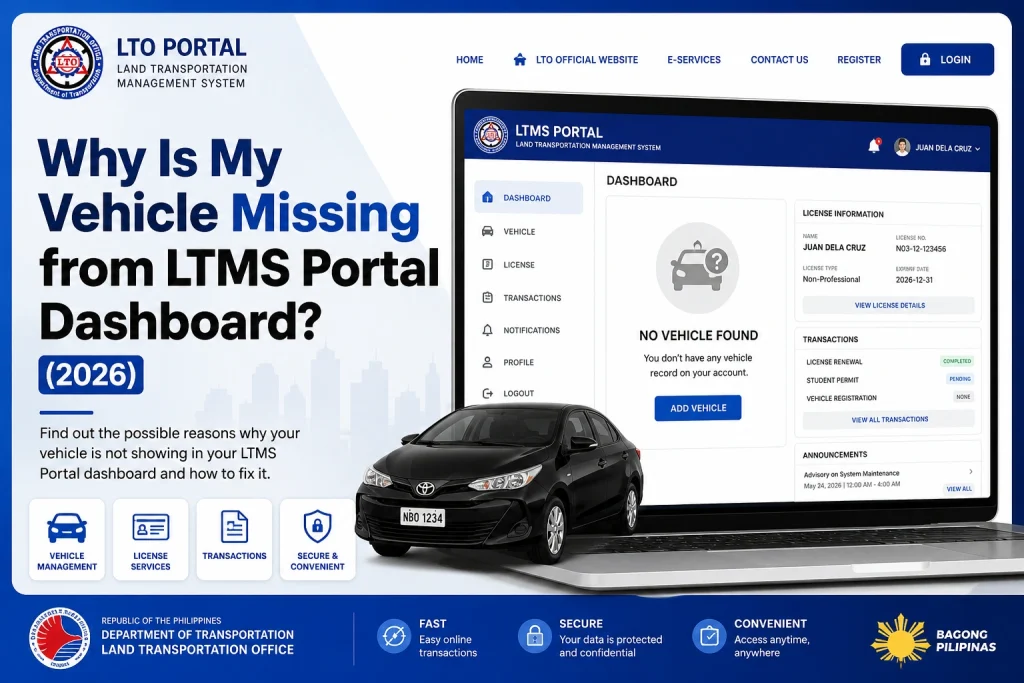
If the portal doesn’t allow you to add the vehicle directly, it may require LTO support assistance.
When to Contact LTO Support
If you’ve tried all the above steps and your vehicle still doesn’t appear, it might be time to reach out to LTO support.
Call or visit LTO customer service:
Provide them with your vehicle details and explain the issue you’re facing.
Submit a ticket:
If the LTMS Portal offers a support ticket system, submit a detailed ticket with your issue and request assistance.
LTO support can help you resolve any issues with linking your vehicle to the LTMS Portal.
FAQs
Conclusion
If your vehicle is missing from the LTMS Portal dashboard, it’s usually due to a simple issue, such as a data mismatch, incomplete registration, or technical glitch.
By following the steps above, you can troubleshoot and hopefully resolve the problem. If all else fails, LTO customer service is your best resource for getting the issue fixed.


