
How to Change LTMS Portal Email and Update Info (2026)
The LTMS Portal is an essential tool for managing your driver’s license, vehicle registration, and other LTO-related services online. Over time, you may need to update your personal information or change your email address associated with your LTMS account. Whether you’ve changed your email address, need to correct a detail, or update your account, this guide will show you how to make these changes quickly and easily.
Why You Might Need to Change Your LTMS Portal Email or Update Info
There are several reasons you might need to change your email address or update your personal details on the LTMS Portal:
Changing your email and updating personal information ensures your account stays accurate and secure.
You can also read: LTMS Portal: Step-by-Step Guide for New Users Update (2026)
Step 1: Log In to Your LTMS Portal Account
Before making any changes to your LTMS Portal account, you need to log in.
Go to the LTMS Portal Login Page
Open your preferred browser and navigate to the LTMS Portal website:
portal.lto.gov.ph
Enter Your Credentials
Email address or LTO Client Number
Password
Click on “Login” to access your LTMS Portal dashboard.
Step 2: Change Your Email Address on LTMS Portal
If you need to change your email address on the LTMS Portal, follow these steps:
to Account Settings
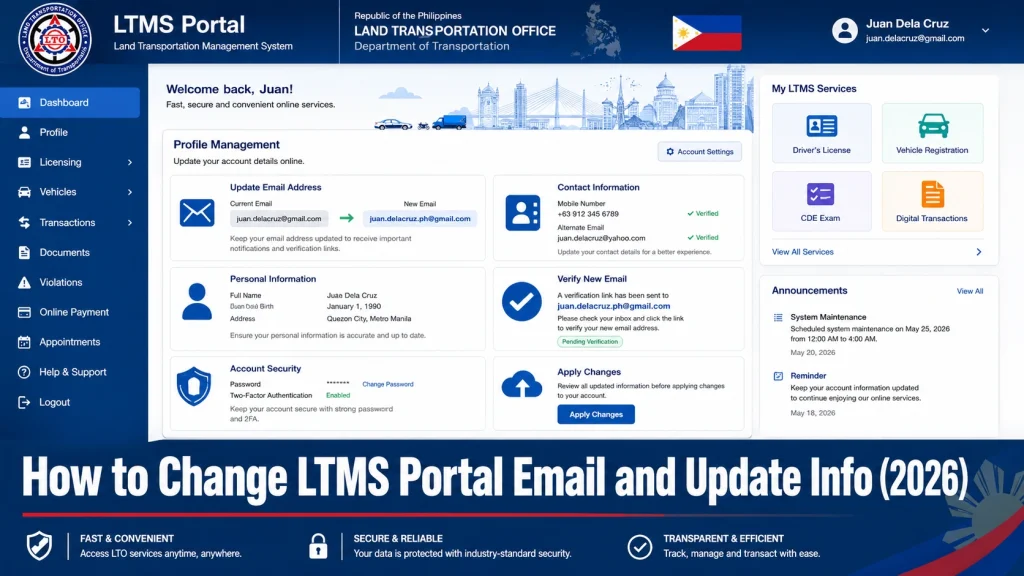
Once logged in, navigate to the Account Settings section. This can usually be found by clicking your profile or username in the upper-right corner of the dashboard.
Update Your Email Address
In the Account Settings section, you’ll see the option to update your email address. Enter your new email address in the provided field.
Verify Your New Email Address
After you update your email, the system will typically send a verification email to the new address. Open your inbox, find the verification email, and click on the verification link to confirm your new email address.
Note: You may need to log out and log back in to complete the change.
Step 3: Update Your Personal Information
If you need to update any other personal details, such as your name, date of birth, address, or contact number, follow these steps:
From the dashboard, go to the Profile or Personal Information section, which can typically be found in your Account Settings.
In the Profile Settings, you can edit the following fields:
- Full Name
- Date of Birth
- Address
- Phone Number
- Emergency Contact Information
Update the fields as needed.
Once you’ve updated your information, be sure to click “Save” to apply the changes.
Note: Some changes, such as your name, might require official documents or verification through LTO. If there are any discrepancies in the system, you might be asked to visit an LTO office to provide supporting documentation.
Step 4: Secure Your Account with Updated Email
If you’ve changed your email address, it’s a good idea to update your security settings to ensure your account stays secure.
Enable Two-Factor Authentication (2FA)
If not already enabled, consider turning on two-factor authentication (2FA) for an added layer of security. This will require you to enter a code sent to your phone or email whenever you log in.
Update Your Password (Optional)
For added security, you might want to change your password as well, especially if you suspect that someone might have gained unauthorized access to your account.
Step 5: Review and Confirm Changes
After changing your email and updating your personal information, it’s important to review everything to ensure accuracy.
Verify Information
Check Email for Confirmation
Step 6: Log Out and Log Back In
Once you’ve made your changes, it’s a good idea to log out of your LTMS Portal account and then log back in using your updated email and password. This will ensure that your changes have been saved and that your account is fully updated.
FAQs
Conclusion
Changing your email address and updating your personal information on the LTMS Portal is simple and straightforward. By following these steps, you can ensure that your account remains accurate, secure, and easy to manage. Regularly updating your email and other personal details will help you stay connected with the LTMS Portal, especially if you need to receive important notifications.
If you encounter any issues or need assistance with the process, don’t hesitate to contact LTO customer support for help.


