
LTMS Portal Troubleshooting: Common Errors and Fixes (2026)
The LTMS Portal is a vital tool for managing your driver’s license, vehicle registration, and other LTO-related services online. However, like any online system, you may encounter occasional errors. Whether it’s login issues, missing data, or system glitches, these problems can be frustrating. This guide will walk you through some of the most common errors on the LTMS Portal and provide step-by-step solutions to fix them.
Login Issues: “Incorrect Credentials”
One of the most common issues is being unable to log in to the LTMS Portal due to incorrect credentials. This error usually occurs if you’re entering the wrong email address or password, or if your account is locked or suspended.
How to fix it:
You can also read: How to Avoid LTMS Portal Fake Sites & Phishing Update 2026
Email Verification Not Received
After registering on the LTMS Portal, you’ll receive a verification email. If you don’t receive this email, you may not be able to complete your registration and log in.
How to fix it:
“Page Not Found” or 404 Errors
Sometimes, you may encounter a 404 error or see a “Page Not Found” message when trying to access certain pages or services on the LTMS Portal.
How to fix it:
Missing Data (Driver’s License, Vehicle Info)
Another common issue is missing data, such as your driver’s license details, vehicle registration info, or other account-related information not appearing on the portal.
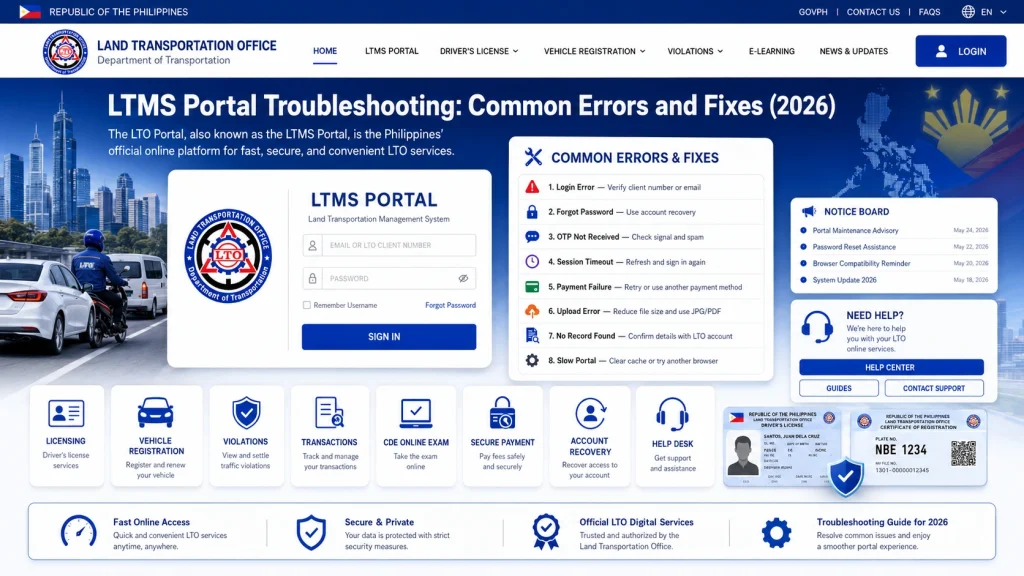
How to fix it:
Sometimes, data syncing between the LTO system and the LTMS Portal can take time. Wait up to 48 hours for the data to appear.
Double-check that the details you entered, such as your name, driver’s license number, and vehicle registration info, match the records in the LTO database.
If your account still doesn’t show updates, try clearing your browser’s cache or use Incognito Mode to ensure you’re seeing the latest version of the portal.
If the issue persists, contact LTO customer support for assistance. They can help resolve data discrepancies or delays in syncing.
Payment Issues: “Payment Failed” or “Transaction Unsuccessful”
Many users face issues when trying to make payments through the LTMS Portal, such as receiving a “Payment Failed” or “Transaction Unsuccessful” message.
How to fix it:
Check your payment details:
Ensure that your payment information (credit card, bank account, etc.) is correct and that your account has sufficient funds.
Verify internet connection:
A poor internet connection can interfere with the payment process. Ensure that you have a stable connection before making payments.
Try a different payment method:
If you’re using a specific payment method (e.g., credit card), try using an alternative (e.g., GCash, PayMaya, or bank transfer).
Contact payment provider:
If the issue is with the payment gateway, contact the payment provider (e.g., bank, e-wallet service) for assistance.
Check for maintenance:
If the payment gateway is down, wait for the LTMS Portal or payment provider to resolve the issue.
Error Messages While Uploading Documents
When registering or renewing your driver’s license or vehicle registration, you may encounter errors while uploading required documents. Common issues include file size or file format problems.
How to fix it:
Check document format:
Ensure the documents are in the correct format (usually JPEG, PNG, or PDF). If the file is in a different format, convert it to an acceptable one.
Check file size:
Some documents may have size limitations. Make sure the file size is within the allowed limit (usually around 2MB per file).
Scan or take clearer pictures:
If the documents are not clear, scan or take better pictures to ensure they are legible. Avoid blurry or cropped documents.
Re-upload the documents:
If the documents failed to upload, try uploading them again, ensuring that they meet the LTMS Portal’s requirements.
“Server Timeout” or Slow Loading
If the LTMS Portal is loading slowly or you receive a server timeout message, it could be due to high traffic or server issues.
How to fix it:
FAQs
Conclusion
The LTMS Portal is a powerful tool for managing your LTO-related tasks, but like any online system, errors and issues can occur. By following the troubleshooting steps outlined in this guide, you can resolve most common problems quickly and easily. If the issue persists, don’t hesitate to contact LTO customer support for assistance.


