
LTMS Portal Not Showing Updates? Here’s What to Do (2026)
The LTMS Portal is a valuable tool for managing your driver’s license, vehicle registration, and other LTO services online. However, sometimes users experience issues where the portal does not show updates to their information, such as renewal statuses or traffic violations. If you’re facing this issue, don’t worry — this guide will walk you through the most common causes and solutions to fix the LTMS Portal not showing updates.
Common Reasons the LTMS Portal Isn’t Showing Updates
- The LTMS Portal relies on real-time data synchronization between LTO’s internal systems and the online portal. If there’s a delay in updating LTO’s records, it may take time for those changes to appear in your portal account.
- How to fix it:
- Wait for up to 48 hours: Sometimes, it can take up to 48 hours for updates to be reflected on the LTMS Portal. Be patient and check back after a day or two.
- Check for system maintenance: Visit the LTMS Portal or LTO’s official website or social media pages to see if there are any scheduled updates or maintenance that could be delaying the sync.
- If there are incomplete transactions, such as unpaid fees or pending documents, your updates may not appear. For example, if you recently renewed your driver’s license or registered a vehicle but didn’t complete all necessary steps, the LTMS Portal may not reflect the changes until the process is fully completed.
- How to fix it:
- Review transaction status: Check the status of any ongoing transactions (like vehicle registration or license renewal). Make sure that all required documents have been submitted and that payments have been processed.
- Complete pending tasks: If the system shows pending tasks, complete them by uploading the necessary documents or making payments through the portal.
- If the personal details you’ve entered in the LTMS Portal do not match the records in LTO’s system, the updates may fail to sync properly. This can happen if there’s an error in your name, birthdate, or other personal information.
- How to fix it:
- Double-check your details: Ensure that your full name, birthdate, and other personal information match exactly what’s on your official LTO records (e.g., driver’s license).
- Contact LTO support: If you notice any discrepancies, contact LTO customer service to correct the records in their system.
- Sometimes, the LTMS Portal doesn’t display the latest updates due to your browser cache or cookies storing outdated data. This can prevent the portal from refreshing and showing the most current information.
- How to fix it:
- Clear your browser cache: Go to your browser settings and clear the cache and cookies to force the portal to refresh the data.
- Try a different browser: If clearing the cache doesn’t work, try accessing the portal on a different browser or device to see if the updates appear.
- Occasionally, technical issues on the LTMS Portal can cause updates to not show properly. These glitches might be related to server problems, bugs in the system, or temporary interruptions in service.
- How to fix it:
- Log out and log back in: Try logging out of your LTMS Portal account and logging back in to see if the updates appear.
- Try Incognito mode: Use Incognito Mode or Private Browsing in your browser to bypass any cache or cookies that might be causing issues.
- Check for system maintenance: Visit the LTO website or social media for any notifications regarding ongoing updates or maintenance work.
You can also read: LTMS Portal: How to Change Registered Email Update (2026)
Steps to Take When LTMS Portal Isn’t Showing Updates
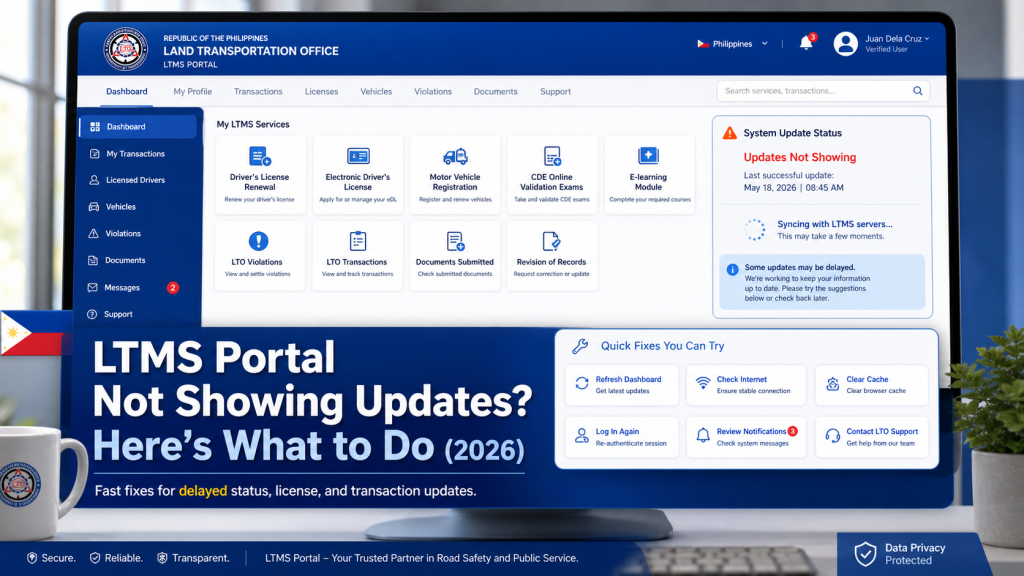
Check for System Updates and Maintenance
The LTMS Portal might not show updates if the system is undergoing maintenance or updates. LTO sometimes conducts scheduled maintenance, during which updates may not be available on the portal.
Look for announcements: Check LTO’s official website, social media pages, or the LTMS Portal login page for any notices regarding system maintenance or updates.
Wait for completion: If maintenance is in progress, you may need to wait until it’s completed before your information is refreshed.
Ensure Your Registration Is Complete
If you’re expecting an update regarding your driver’s license renewal or vehicle registration, make sure the registration process is complete on your end.
Complete any pending payments: Ensure all payments (e.g., license fees, registration fees) have been made.
Submit required documents: Make sure that all required documents (such as proof of identity, photo, or proof of address) have been uploaded correctly.
Clear Browser Cache and Try Again
Outdated information in your browser’s cache can cause the LTMS Portal to display older data. Try the following:
Clear your browser’s cache: Go to the settings and clear the cache and cookies, then log in again.
Use a different browser or device: If clearing the cache doesn’t help, try using a different browser (Chrome, Firefox, Safari) or device (mobile, desktop, tablet).
Contact LTO Support
If your information still isn’t updating after waiting, completing pending tasks, and clearing your cache, you may need to reach out to LTO customer support.
Contact through the official channels: Reach out via email, phone, or the LTO contact form to explain the issue and request assistance.
Provide details: When contacting support, provide specific details like your LTO Client Number, transaction details, and any error messages you’ve encountered.
FAQs
Conclusion
If the LTMS Portal isn’t showing updates, it could be due to data sync delays, pending tasks, browser issues, or system glitches. By checking for maintenance updates, ensuring all steps are completed, clearing your browser cache, and contacting LTO support when needed, you can resolve most issues quickly.
Stay patient, and remember that some delays are temporary.
With these steps, you should be able to get your LTMS Portal information updated without further hassle.


