
How to Reset LTMS Portal Password Without an Email (2026)
For many users in the Philippines, forgetting your LTMS Portal password is normal. The common way to reset it is through your registered email — but what if you no longer have access to that email or can’t receive the reset link? This guide shows you the actual steps you can take when email reset isn’t an option.
Why You Might Not Be Able to Use Email
Here are the usual reasons people can’t use their email to reset the LTMS Portal password:
When email reset isn’t working, you need options that do not rely on email.
You can also read: LTMS Portal Login Failure: What to Do Next Update (2026)
Step 1: Confirm the Email You Used (Even Without Access)
Before doing anything else, try to remember or find out which email you used to register your LTMS account. This is important because all recovery steps work based on your registered account.
Try these quick checks:
Knowing the correct account makes recovery easier even if you can’t access that inbox.
Step 2: Use Your LTMS Client ID Instead of Email
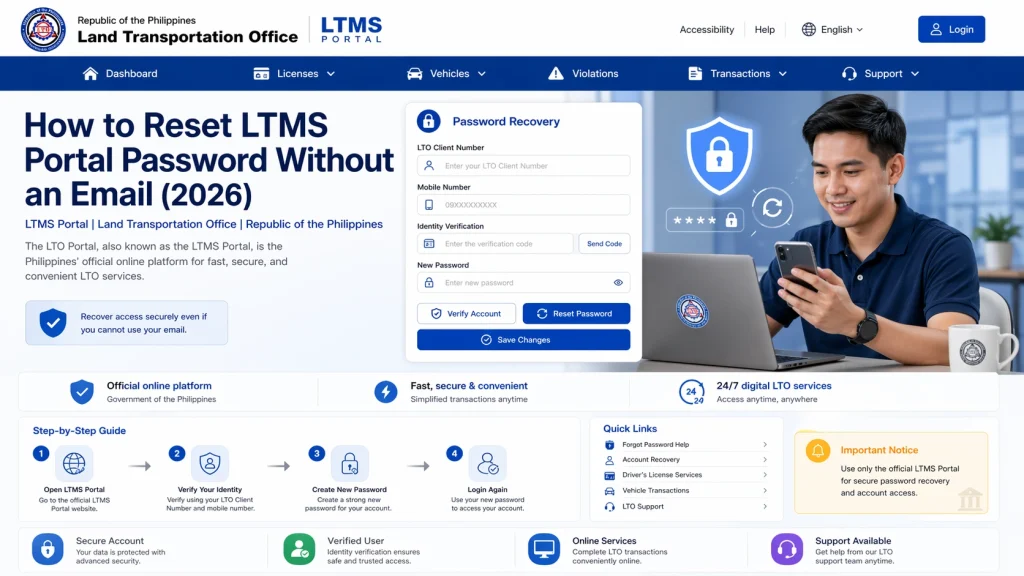
In many cases, you can reset your password by using your LTMS Client ID instead of your email. This works when the portal recognizes your ID as the main account identifier.
Here’s how:
If your phone number was registered, you may receive reset details via SMS.
Step 3: Contact LTO Support for Manual Reset
If email and Client ID resets don’t work, the best option is direct support from the Land Transportation Office.
Contact options include:
When you contact support, include this information:
Support can verify your identity and manually reset your password or update your email.
Step 4: Visit an LTO Branch If Support Is Slow
Many users find that going to the nearest LTO office gets faster results when online support isn’t responding quickly.
Bring:
In person, the LTO clerk can verify your identity and reset your login details manually.
Step 5: Add or Update Your Email After You Regain Access
Once you regain access to your account, update your contact details immediately:
This prevents future login problems.
Tips to Remember
FAQs
Conclusion
Not being able to use email to reset your LTMS Portal password can seem stressful, but it’s solvable. First try using your Client ID if you know it.
If that does not work, reach out to official LTO support with ID verification or visit an LTO office for direct assistance. Once you regain access, update your account with current contact details so future logins go smoothly.
With the right steps, you can recover your account without needing access to your old email.


