
How to Link a Vehicle to LTMS Portal Latest Update (2026)
If you’re a motorist in the Philippines, you know how important it is to have access to your vehicle records online. The Land Transportation Management System (LTMS) Portal is the official online platform provided by the Land Transportation Office (LTO), allowing users to link their vehicles, renew licenses, and more, all in one place. But what if your vehicle isn’t showing up on the LTMS Portal? How do you link your vehicle to the system? In this guide, we’ll walk you through the process step-by-step.
Why Link Your Vehicle to LTMS Portal?
Linking your vehicle to the LTMS Portal allows you to:
It’s a must-do if you want a hassle-free experience managing your motor vehicle.
You can also read: Vehicle Not Showing in LTMS? Fix It Fast Latest Update (2026)
Steps to Link Your Vehicle to LTMS Portal
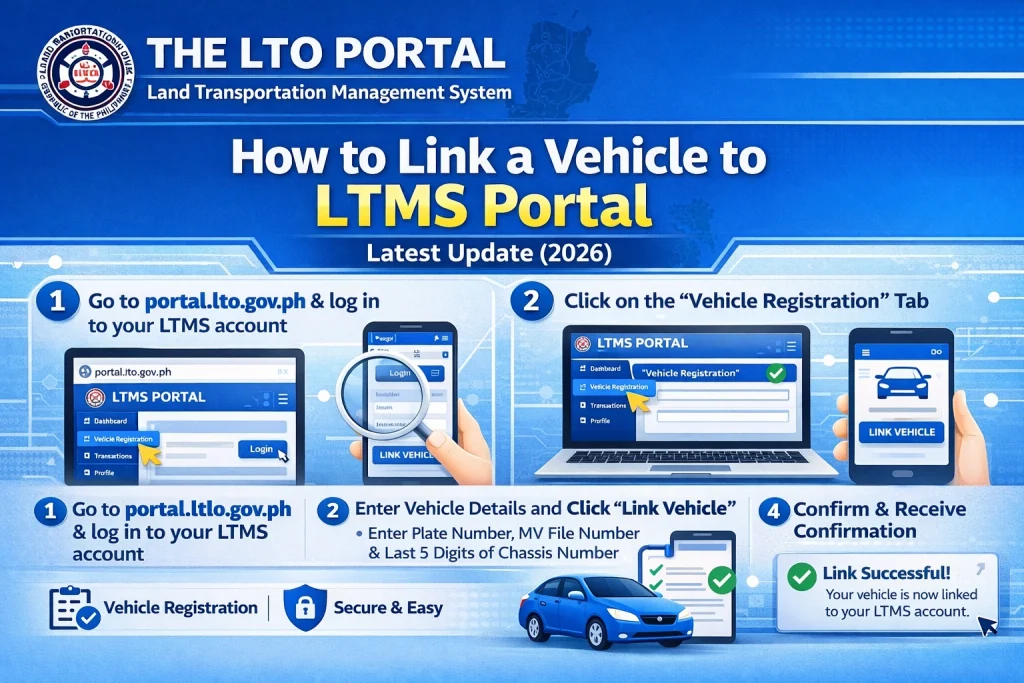
Here’s how you can link your vehicle to the LTMS Portal:
Register for an LTMS Account
Before linking your vehicle, you must have an active account with the LTMS Portal. If you don’t have one yet, follow these steps:
Log in to the LTMS Portal
Once you have successfully created your account, follow these steps:
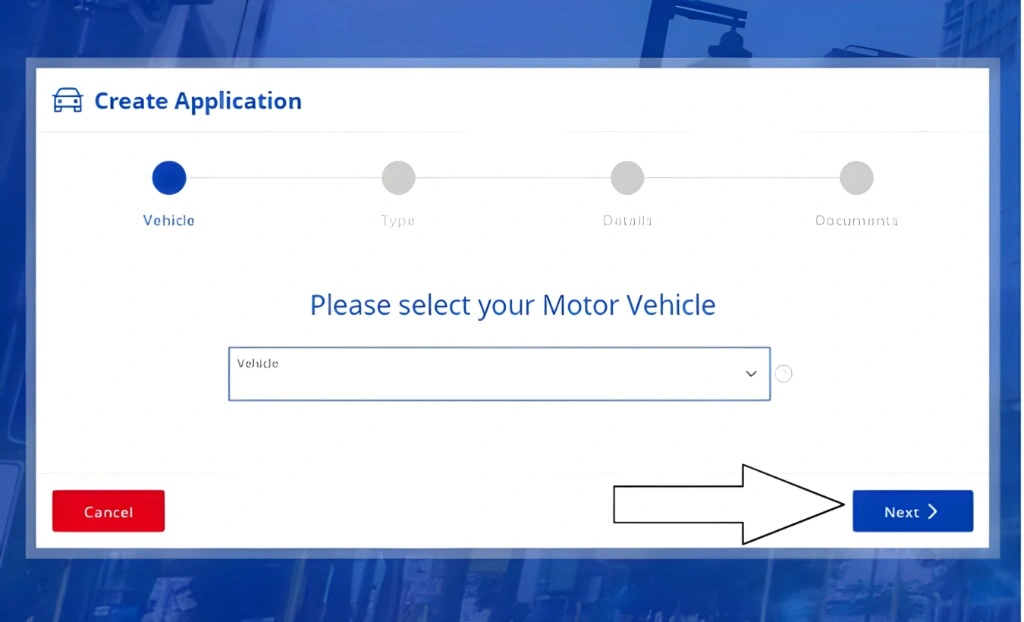
Link Your Vehicle to Your Account
Now that you’re logged into your LTMS account, here’s how you can link your vehicle:
Enter Vehicle Details: You’ll need to input your vehicle’s important information, such as:
- Plate Number
- Chassis Number
- Engine Number
- Make and Model
- Year of Manufacture
Verify Your Vehicle Information
Once your vehicle is added to the system, it will be reviewed by the LTMS. If everything is correct, your vehicle will be linked to your account. You should receive a confirmation message that your vehicle has been successfully linked.
Check Your Vehicle’s Status
To confirm your vehicle has been successfully linked, follow these steps:
If there are any discrepancies or if your vehicle is not showing up, you may need to contact LTMS support for assistance.
Common Problems When Linking a Vehicle
Here are some issues people commonly face when linking their vehicle to the LTMS Portal and how to resolve them:
Ensure that all the information you enter matches the official LTO records. A small typo in your plate number or engine number can cause an error.
If your vehicle is newly registered or you’ve just bought it second-hand, it might take a few days for the system to reflect the registration.
Try clearing your browser’s cache or refreshing the page if you’re facing any errors or loading issues. Sometimes, LTMS updates might cause temporary delays.
If there are any unpaid penalties or expired documents, your vehicle may not be linked until you settle these.
Tips for Successfully Linking Your Vehicle
Double-check your details: Always verify your vehicle’s plate number, chassis number, and engine number to make sure they match exactly what’s on your vehicle registration papers.
Keep your LTO documents handy: You’ll need to have your official registration details available when linking your vehicle to avoid errors.
Use the LTMS mobile app: If you’re on the go, the LTMS mobile app offers an easier and more convenient way to link your vehicle.
Ensure your account is verified: If your LTMS account isn’t verified, you won’t be able to add or link your vehicle. Make sure you’ve completed the registration and email verification process.
FAQs
Conclusion
Linking your vehicle to the LTMS Portal is a quick and simple process that makes managing your vehicle’s records and registrations easier. By following the steps above, you can link your vehicle and start enjoying the convenience of online access to your LTO services. Make sure to double-check your information and follow the tips to avoid common mistakes.


