
How to Merge Duplicate LTMS Accounts — A Step-by-Step Guide
If you’ve encountered issues with multiple LTMS accounts or received the “account already exists” error, it’s likely that you have duplicate accounts in the Land Transportation Management System (LTMS) portal. This can happen if you’ve used different email addresses or LTO client numbers while registering or if a car dealer created an account for you during vehicle registration.
Fortunately, merging your duplicate LTMS accounts is a straightforward process. In this guide, we’ll walk you through the steps to fix this issue and ensure all your LTO records are in one account.
Why Do You Have Duplicate LTMS Accounts?
Duplicate accounts typically occur when:
Having multiple LTMS accounts can cause problems when trying to access services like license renewal, vehicle registration, or paying fines. Merging your accounts into one will simplify the process and help avoid future issues.
You can also read: CDE Result Missing in LTMS Portal? What You Should Do (2026)
How to Merge Duplicate LTMS Accounts
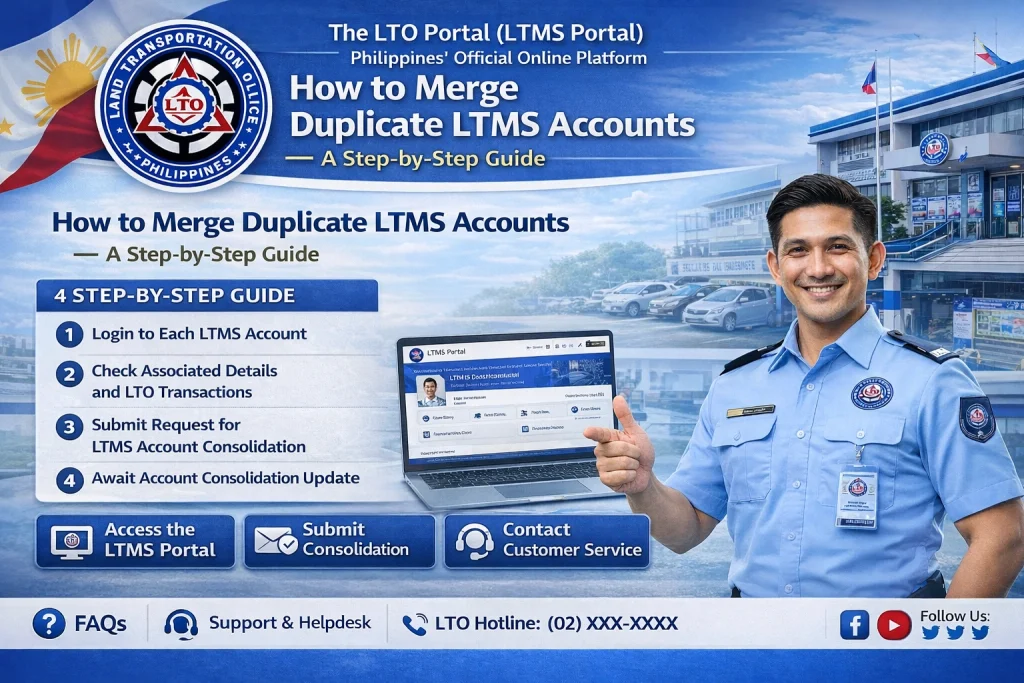
Before you begin merging, you need to confirm that you actually have duplicate accounts. Here’s how you can verify:
If both accounts have the same records but different email addresses, they are most likely duplicates.
Log into each account you believe might be duplicated using different email addresses or LTO client numbers.
Ensure that each account is linked to the same driver’s license number or vehicle registration details.
Once you’ve confirmed that you have duplicate accounts, contact LTO customer service to request a merge. You can reach them by:
- Visiting the LTMS portal and using the Contact Us form.
- Emailing LTO at their official customer support email address (usually listed on the LTMS portal).
- Calling the LTO hotline for immediate assistance.
Be sure to provide the following details to help the LTO team identify and merge your accounts:
The records you wish to merge (e.g., driver’s license, vehicle registration).
Your LTO client number (if available).
Your name, birthdate, and contact details.
The email addresses linked to your accounts.
After contacting customer support, LTO will guide you through the process of merging your accounts. They may ask you to:
Choose which email address or phone number you want to keep for the merged account.
Provide additional documentation (e.g., proof of identity, affidavit, or previous registration records).
Confirm the account details to ensure they match across both accounts.
LTO will process your request and merge your duplicate accounts. This process can take a few days to a week, depending on their workload and the complexity of your request. Be patient and check your email for updates.
Once your accounts are merged, you should receive confirmation from LTO. You’ll now be able to access all your records in a single account, making it easier to manage your LTMS services.
Additional Tips for Merging LTMS Accounts
Keep your details up-to-date
After the merge, ensure that your account information (email, phone number, etc.) is correct and up-to-date.
Avoid creating multiple accounts
If you’ve forgotten your LTMS login details, try resetting your password rather than creating a new account.
Use a strong, unique password
Make sure to use a secure password for your merged account to prevent unauthorized access.
FAQs
Conclusion
Merging duplicate LTMS accounts is a simple process if you follow the steps above and contact LTO customer support. Once your accounts are merged, you can access all your records from a single login, making it easier to renew your driver’s license, register vehicles, or pay fines.
If you encounter any issues along the way, don’t hesitate to reach out to LTO for assistance. They are there to help you resolve these problems and ensure a smooth experience with LTMS.


