
LTMS Portal: Why My Driver’s License Isn’t Showing (2026)
Are you logging into the LTO Portal (LTMS Portal) and wondering why your driver’s license isn’t showing up? It can be frustrating when you can’t see your most important information in the portal, but don’t worry — this guide will walk you through the possible reasons and how to fix it.
Why Your Driver’s License Might Not Appear in LTMS
There are several common reasons why your driver’s license might not show up in the LTMS Portal, and it usually comes down to simple system delays or data syncing issues. Here’s what could be happening:
When you first register or update your information on the LTMS Portal, it may take some time for your driver’s license information to appear. The system doesn’t always sync instantly, especially if there’s heavy traffic or if you recently completed a transaction.
If your registration process wasn’t completed fully or if there was an error during the registration process, your driver’s license details might not have been added to the system.
Sometimes, bugs or temporary glitches in the LTMS Portal can cause certain data, like your driver’s license, not to show up. This could happen after a system update or during high traffic periods.
If your driver’s license details are outdated or incorrect, it might not show up in the portal. For instance, if your information wasn’t properly entered during your last visit to the LTO office, the portal may not be able to retrieve it.
When the LTO system updates or migrates data (like during system upgrades), there may be a backlog in syncing information. This could cause delays in displaying your driver’s license or vehicle registration details in the LTMS Portal.
You can also read: Car in LTMS but No OR/CR Yet? Here’s What to Do Update (2026)
How to Fix the Problem
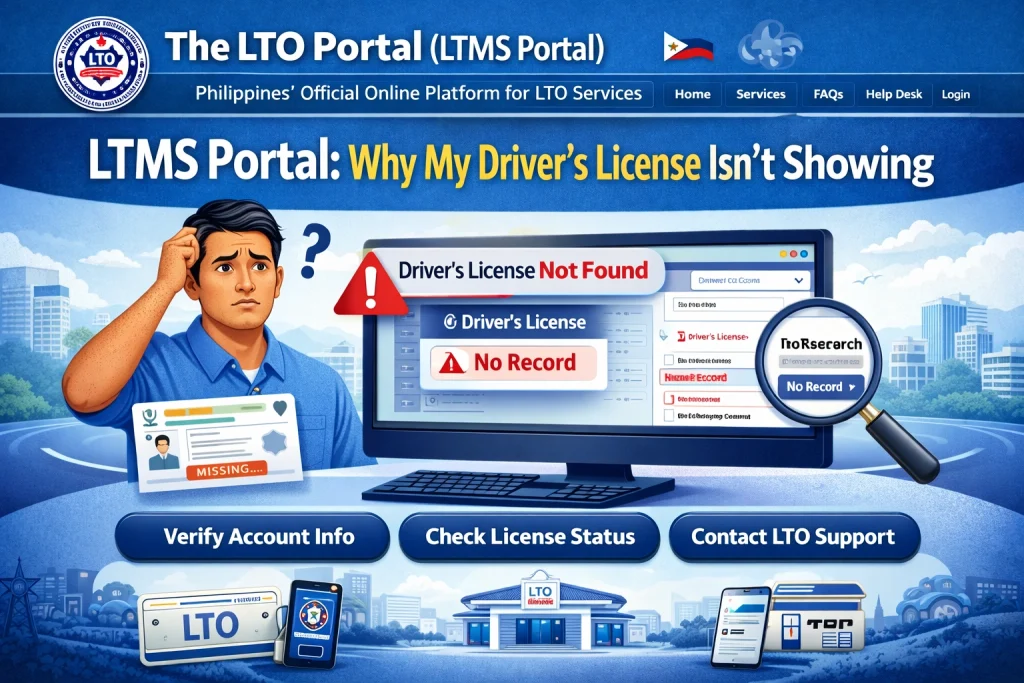
If your driver’s license isn’t showing up in the LTMS Portal, here’s what you can do to resolve it:
Wait and Check Again Later
If you recently registered or updated your details, it may just be a matter of waiting. Try logging into the portal after a few hours or the next day to see if the information has synced.
Confirm That Your Registration Was Complete
Make sure your registration process was fully completed. If you were prompted to fill in details and forgot to click the final confirmation button, the system may not have recorded your driver’s license info properly. If you’re unsure, try logging out and logging back in to see if the system registers any changes.
Check for Typo in Your Details
If you entered your details incorrectly, especially your driver’s license number or name, this could prevent your data from showing up. Double-check the information you provided during registration, and make sure everything matches your official documents. If you spot an error, try updating your information.
Clear Cache and Use Another Browser
Sometimes, the issue might be with the browser or the cache causing delays in loading your information. Try clearing your browser’s cache or switching to a different browser (e.g., Chrome, Firefox) to see if that helps.
Contact LTO Customer Service
If your driver’s license still isn’t showing up after trying the steps above, reach out to LTO Client Care for assistance. They can look into your account and check for any errors in the system. You can contact them via email or through the LTO official social media channels for support.
Visit the Nearest LTO Office
If the issue persists, you can visit your nearest LTO office. The staff will be able to verify your information and help fix any discrepancies. Bring your driver’s license and valid ID to confirm your identity.
FAQs
Conclusion
Not seeing your driver’s license in the LTMS Portal can be frustrating, but it’s usually an issue that can be solved easily. Whether it’s a data syncing delay, registration error, or system bug, following the steps in this guide will help you get back on track.
If the issue continues, don’t hesitate to contact LTO Client Care or visit your nearest LTO office for further assistance. Soon enough, you’ll be able to access all your driver’s license and vehicle details in the LTMS Portal with ease!


