
LTMS Record Error? What Drivers Should Do Update (2026)
If you’re a driver in the Philippines and have encountered an error in your Land Transportation Management System (LTMS Portal) record, you’re not alone. It can be frustrating to see discrepancies or missing information when you try to access your vehicle or driver’s license details online. However, the good news is that most LTMS record errors are simple to resolve with a few straightforward steps.
In this article, we’ll guide you through the common LTMS record errors, why they occur, and what you should do to fix them.
Common LTMS Record Errors
Here are some of the most common LTMS record errors that drivers encounter:
This occurs when the LTMS Portal cannot locate your vehicle’s registration in the system. It could be due to incorrect information entered, delays in data processing, or technical issues in the system.
Sometimes, drivers may not see their license information or the status of their driver’s license might show as expired, even though it’s not. This could be due to data syncing problems.
Errors in vehicle information, such as the wrong plate number, engine number, or chassis number, can cause discrepancies in the LTMS system.
Issues like invalid email, incorrect client number, or password errors can prevent you from logging in to your LTMS account and viewing your records.
Sometimes, if your vehicle’s registration has expired or if there are unpaid fines, the system might flag your account, causing errors or delays in record updates.
You can also read: How to Link a Vehicle to LTMS Portal Latest Update (2026)
Steps to Fix LTMS Record Errors
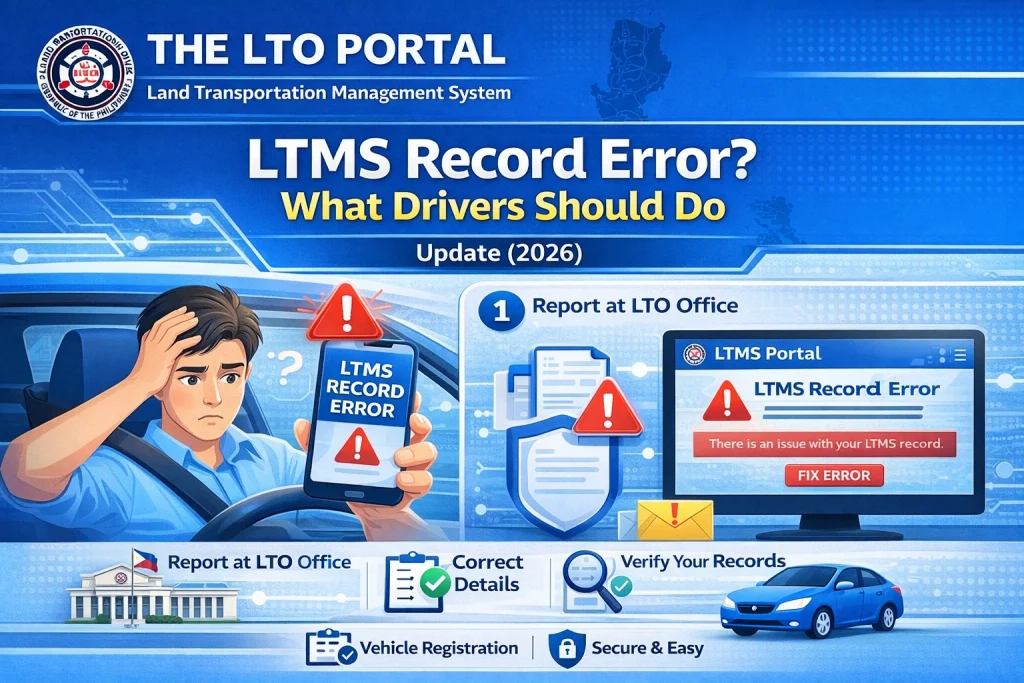
If you’re facing an LTMS record error, don’t worry! Here’s what you should do to resolve the issue:
Double-Check Your Details
The first step is to verify that all the details you’ve entered in the LTMS Portal are correct. Small errors in vehicle registration details, such as the license plate number, chassis number, or engine number, can lead to problems.
Wait for Data Synchronization
Sometimes, LTMS records may take a few days to sync properly after you’ve updated your registration or driver’s license information. If your information is new or you’ve recently made updates to your record, the system may just need some time to reflect those changes.
If your vehicle was newly registered or your license was recently renewed, check back in a few days to see if the records have updated.
Clear Your Browser Cache
If the LTMS Portal is still showing errors, it could be a problem with your browser’s cache. Here’s how to clear your cache:
- On Google Chrome:
- On Safari:
Refreshing the page after clearing the cache can help fix minor technical glitches.
Check for System Maintenance
Sometimes, LTMS may be undergoing scheduled maintenance or updates. This could cause temporary errors or delays in loading your records. Here’s how to check:
Check the LTO Website or Facebook page: Visit the LTO official website or their Facebook page for announcements about system maintenance or downtimes.
Try again later: If the LTMS Portal is down, give it some time and try again after a few hours or the next day.
Resolve Any Unpaid Fees or Penalties
If your vehicle record isn’t appearing or your license information is missing, there could be an issue with unpaid fees or penalties. Here’s what to do:
Once the payment is processed, your record should be updated in the system.
Contact LTMS Support for Help
If you’ve double-checked your details, cleared your cache, and waited for synchronization, but you’re still encountering errors, it’s time to get in touch with LTMS support. Here’s how to do it:
Email LTMS Support: You can send an email explaining the issue. Be sure to include your full name, client ID, vehicle registration details, and any error messages you’re receiving.
Call LTO’s customer service hotline: You can also call the LTO customer service number to speak with a representative who can assist you.
Visit your local LTO office: If the issue persists, you can visit the nearest LTO branch to inquire about your vehicle or driver’s license record.
Preventing LTMS Record Errors in the Future
To avoid future errors, here are a few tips:
Keep your records up to date:
Make sure your vehicle and driver’s license information is always accurate in the system. If anything changes, update it immediately.
Pay your fines and fees on time:
Unpaid fines or fees can cause issues with your LTMS records. Make sure to settle any dues promptly.
Use the LTMS mobile app:
The mobile app can sometimes offer a more reliable and convenient way to manage your records.
FAQs
Conclusion
LTMS record errors can be frustrating, but they are typically easy to fix with the right steps. Whether it’s checking your details, waiting for system updates, clearing your browser cache, or resolving unpaid fees, there are simple actions you can take to resolve the issue. If all else fails, don’t hesitate to contact LTMS support for help.
By following these steps, you can ensure your vehicle and driver’s license records are always up to date and accessible through the LTMS Portal.


