
LTMS Portal Password Reset Tips & Tricks Latest Update 2026
Resetting your LTMS portal password can feel confusing if it’s your first time or if your account is locked. Don’t worry — it’s easier than it seems. In this guide, you’ll learn practical tips and tricks to reset your password safely, quickly, and without errors.
Why Resetting Your Password Matters
Your LTMS account contains sensitive information such as driver records, vehicle registrations, and violation history. Resetting your password:
Understanding this helps you take the process seriously and avoid mistakes.
You can also read: LTMS Verification Email Delay: What to Do Latest Update 2026
Step-by-Step Password Reset Process
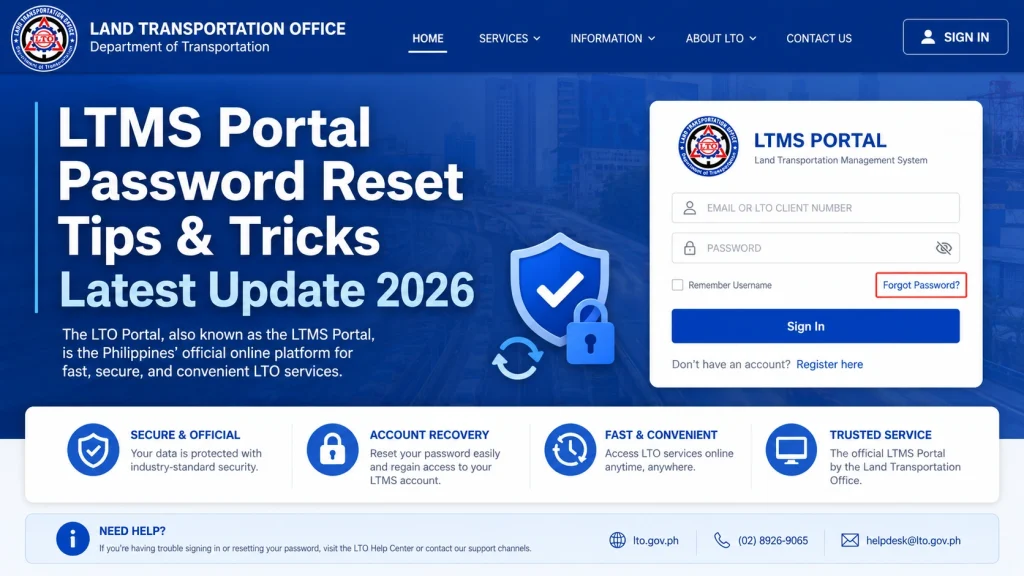
Go to the LTMS Login Page
Click the “Forgot Password” link below the login fields.
Enter Your Registered Email or Client ID
Use the email or ID associated with your LTMS account. Make sure it is accurate to avoid delays.
Check Your Email for Reset Instructions
Look in your inbox, and if you don’t see it, check your Spam or Promotions folders.
Follow the Reset Link Carefully
Click the link and enter a strong, memorable password. Avoid using common passwords or variations of your old one.
Log in with Your New Password
After resetting, log in immediately to make sure your account is active.
Tips & Tricks for a Smooth Password Reset
Use a Secure Password Manager
This keeps your passwords safe and prevents repeated failed logins.
Double-Check Your Email
A single typo can prevent you from receiving the reset link.
Avoid Multiple Reset Attempts at Once
Waiting 10–15 minutes between attempts prevents temporary locks.
Use Official LTMS Portal Links Only
Never click links from SMS or third-party websites that claim to reset your password.
Enable Account Notifications
This lets you know if someone tries to access your account or reset your password without permission.
Common Password Reset Problems and Solutions
| Problem | Possible Cause | Solution |
|---|---|---|
| Didn’t receive reset email | Spam folder, wrong email entered, or email delay | Check spam/promotions, confirm email, wait 10–15 minutes, request new link if needed |
| Reset link expired | Security protocol, link inactive after time | Request a new password reset link immediately |
| Forgot registered email | Cannot verify account online | Visit LTO branch with valid ID to reset password |
| Account locked after multiple reset attempts | Too many failed login attempts | Wait 15–30 minutes, contact LTO support, or visit branch for manual unlocking |
| Suspicious login detected | Login from unknown device/location | Contact LTO support and follow security verification steps |
Understanding LTMS Security Measures
LTMS has strict security measures to protect drivers:
Knowing how LTMS enforces security helps you act faster if your account is locked.
What to Do If You Suspect Unauthorized Access
Sometimes accounts are locked because LTMS detects unauthorized login attempts. If you suspect someone else tried to access your account:
This ensures your personal information and driving records remain safe.
Understanding Temporary vs Permanent Locks
Not all locks are the same:
Knowing this difference helps you decide whether to wait or contact support immediately.
Best Practices for Password Security
Keeping your password secure reduces the chances of repeated lockouts. Consider these practices:
Following these tips ensures your account stays safe and accessible.
How to Recover Quickly If Lockouts Happen Frequently
If your account gets locked often due to failed logins:
Being proactive reduces frustration and helps restore access faster.
FAQs
Conclusion
Resetting your LTMS portal password doesn’t have to be stressful. Follow these steps carefully, implement the tips to stay secure, and monitor your account. By staying organized and cautious, you will avoid account locks, recover quickly when issues arise, and keep your account safe for future use.


