
LTMS Portal: Step-by-Step Guide for New Users Update (2026)
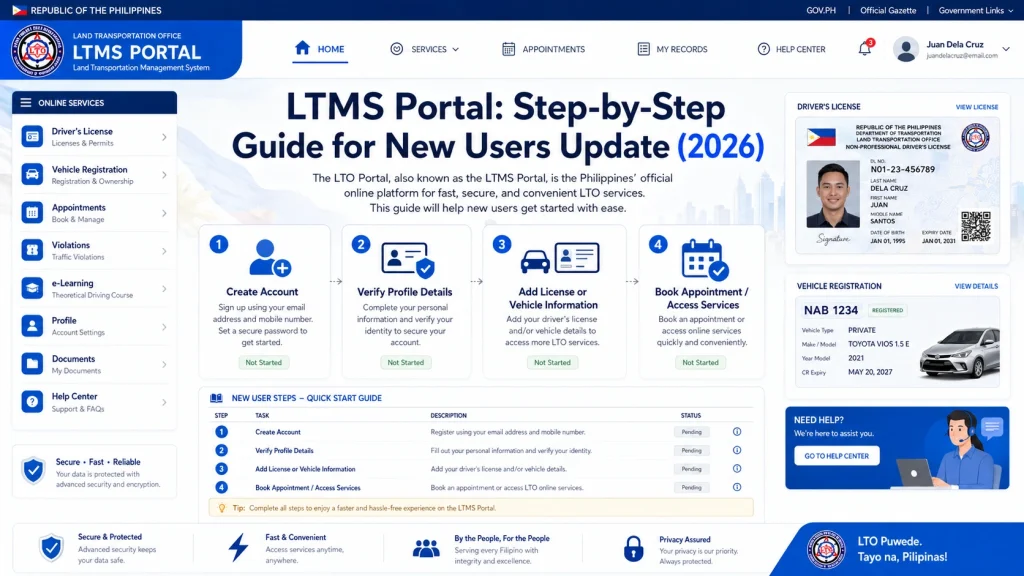
The LTMS Portal is the official online platform provided by the Land Transportation Office (LTO) of the Philippines. It allows drivers and vehicle owners to access a range of services, including driver’s license renewal, vehicle registration, and more. If you’re new to the LTMS Portal, this guide will walk you through everything you need to know, from registration to accessing services.
Step 1: Create an Account on the LTMS Portal
Before you can use the LTMS Portal to manage your driver’s license or vehicle registration, you need to create an account. Follow these steps to register:
Open your preferred browser and type the following URL to visit the official LTMS Portal:
portal.lto.gov.ph
Once on the LTMS Portal homepage, click on the “Register” button to start the account creation process.
You will be prompted to enter your personal details. Ensure that the information matches what is on your official records (e.g., driver’s license or ID). This typically includes:
Residential Address
Full Name (First, Middle, Last Name)
Date of Birth
Gender
Contact Details (email, phone number)
Choose a strong password that is at least 8 characters long and contains a mix of letters, numbers, and special characters. Make sure your password is something you can easily remember.
After entering your details and setting your password, LTMS will send a verification email to the email address you provided. Go to your inbox (check the spam/junk folder if it doesn’t appear) and click on the verification link.
Note: You must verify your email address within 24 hours to complete your registration.
You can also read: LTMS Portal: Fix Missing Data & Sync Issues Update (2026)
Step 2: Log In to Your LTMS Portal Account
Once your account is created and your email is verified, you can log in to the LTMS Portal.
Go to the LTMS Portal Login Page
Visit the LTMS Portal login page at portal.lto.gov.ph.
Enter Your Login Credentials
Enter the email address and password you used during registration.
Click on “Login”
Once you’ve entered your credentials, click “Login” to access your dashboard.
Step 3: Complete Your Driver’s License or Vehicle Registration
Now that you’re logged in, you can use the LTMS Portal to access various services like driver’s license renewal and vehicle registration. Here’s how to use each of these features:
Driver’s License Renewal
To renew your driver’s license via the LTMS Portal:
Navigate to the “Driver’s License” Section:
On your dashboard, find the section related to Driver’s License.
Select “Renewal”:
Click the option to renew your license.
Fill Out the Necessary Forms:
Provide the required details and upload any necessary documents (e.g., a photo, proof of identity).
Pay Fees:
Pay any applicable fees through the payment gateway provided in the portal.
Wait for Approval:
After submitting your renewal application, wait for approval from the LTO system. You may need to visit an LTO office for a final verification, depending on the requirements.
Download Digital License:
Once approved, you can download your digital driver’s license from the portal.
Vehicle Registration
To register or renew your vehicle registration:
Navigate to the “Vehicle Registration” Section:
Find the Vehicle Registration section on your LTMS dashboard.
Enter Vehicle Details:
Input your vehicle’s plate number, chassis number, and other required details.
Upload Documents:
Provide the necessary documents, such as proof of ownership and previous registration.
Pay Fees:
Complete the payment for vehicle registration using the portal’s payment gateway.
Print Your Registration:
After the transaction is complete, you will be able to print or download your vehicle registration certificate.
Step 4: Update Your Profile and Settings
To ensure that your LTMS account stays up-to-date, you can update your personal details and settings at any time.
Update Your Personal Information
To update your personal details:
Change Your Password
If you ever need to change your password:
Enable Two-Factor Authentication (2FA)
Step 5: Track Your Applications and Services
You can use the LTMS Portal to track the status of your driver’s license or vehicle registration applications.
Check Application Status
On your dashboard, you can monitor the status of:
View Traffic Violations or Fines
Step 6: Logout and Keep Your Account Secure
Always remember to log out of your LTMS Portal account when you’re done to keep your information secure, especially if you’re using a shared or public computer.
Log Out
Click on the “Logout” button at the top right corner of the LTMS Portal dashboard.
Secure Your Account
Consider using a strong password and enabling two-factor authentication (2FA) to enhance the security of your LTMS Portal account.
FAQs
Conclusion
The LTMS Portal is a great tool for managing your LTO-related tasks online, but it’s important to ensure you follow the correct steps during registration and account setup.
By following this step-by-step guide, you can easily create an account, access services, and manage your information securely. If you face any issues or have questions along the way, LTO customer support is always available to help.


