
How to Fix LTMS Portal Driver’s License Sync Errors (2026)
If you’ve been using the LTMS Portal for managing your driver’s license or vehicle-related tasks, you might have encountered sync errors that prevent your driver’s license information from appearing correctly on the portal. These errors can be frustrating, especially if you need to renew your license or access your information. In this guide, we’ll walk you through the common causes of driver’s license sync errors and how to fix them.
Common Causes of Driver’s License Sync Errors on LTMS Portal
Incorrect Personal Information
If the personal information you entered during registration does not match the records held by the Land Transportation Office (LTO), it can cause syncing issues. This can include discrepancies in your name, date of birth, or license details.
How to fix it:
Double-check your personal details: Ensure that your full name, date of birth, and other personal details entered on the LTMS Portal exactly match the information on your driver’s license or official documents.
Update your information: If there’s a mismatch, you may need to visit the nearest LTO branch to correct the records in the LTO database.
LTO Database Delays
Sometimes, the LTO system may take longer than usual to update or sync your information with the LTMS Portal. This can be due to high traffic at LTO offices or a backlog of updates being processed.
How to fix it:
Wait for a few days: If your driver’s license information is not syncing immediately, wait for a few days to allow the LTO system to process the updates.
Check LTO announcements: Sometimes LTO will announce system updates or maintenance, which could delay syncing. Keep an eye on official announcements from LTO.
Technical Glitches or System Errors
Technical glitches or errors in the LTMS Portal can also prevent your driver’s license from syncing. This could be due to issues on the portal itself or bugs affecting certain features.
How to fix it:
Clear your browser cache: Cached data in your browser can sometimes interfere with the portal. Go to your browser settings and clear your cache and cookies.
Try a different browser or device: Switch to another web browser (e.g., Chrome, Firefox) or device (e.g., mobile phone or computer) to see if the issue persists.
Log out and log back in: Try logging out of the LTMS Portal and logging back in to refresh your session.
Incomplete or Missing Documents
If the required documents, such as your driver’s license copy or other supporting documents, were not uploaded or were uploaded incorrectly, your license information may not sync properly with the portal.
How to fix it:
Check your document uploads: Go to the LTMS Portal and check if you have uploaded all the required documents in the correct format (e.g., JPEG, PNG, PDF).
Re-upload missing documents: If any documents are missing or need to be corrected, upload them again to ensure the LTMS Portal has the correct and complete documentation.
Issues with Driver’s License Renewal Status
If you recently renewed your driver’s license, it may take some time for the renewal status to reflect on the LTMS Portal. Sometimes, delays in processing renewals can cause syncing issues with your driver’s license data.
How to fix it:
Wait for processing: If your driver’s license renewal is recent, give it a few days for the LTO system to update the portal.
Verify with LTO: If you suspect that there’s an issue with your renewal status, contact your nearest LTO office to confirm whether the renewal has been processed.
You can also read: How to Recover Your LTMS Account Without Branch Visit (2026)
Steps to Fix LTMS Portal Driver’s License Sync Errors
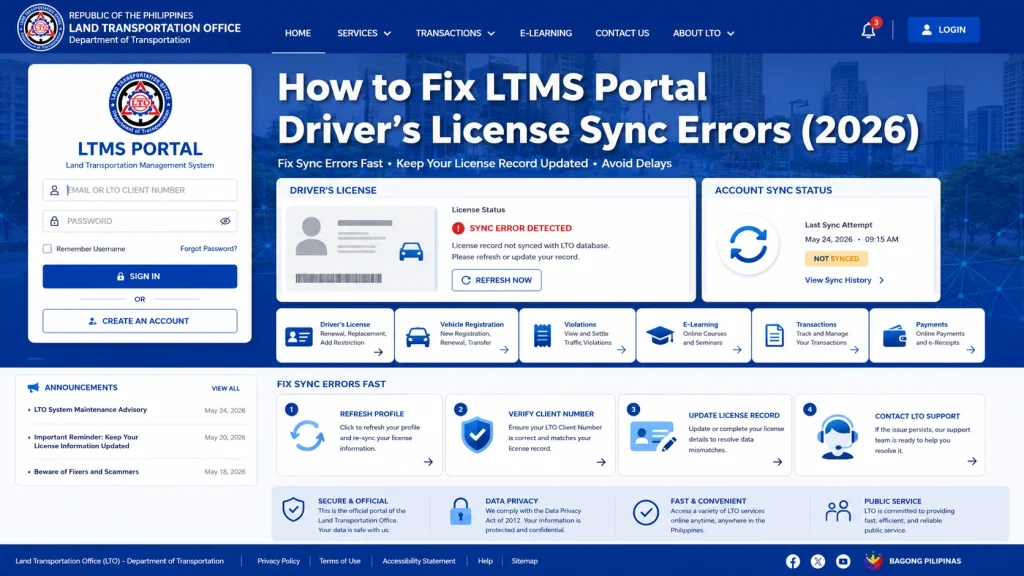
- The first thing to do is check your personal information on the LTMS Portal. Make sure that the details you’ve entered match the official records at LTO. If you find any discrepancies, contact LTO to have them corrected.
- How to fix it:
- Visit an LTO office if your details need to be updated in the system.
- Ensure your name, date of birth, and driver’s license number are correct and match your physical driver’s license.
- Make sure you have uploaded the correct and required documents. If the portal is not syncing your license information, it could be because the necessary documents were not submitted or accepted.
- How to fix it:
- Review the documents you’ve uploaded and re-upload any missing or incorrect documents.
- Ensure that the documents meet the format and size requirements of the LTMS Portal.
- Sometimes, a simple logout and login can help refresh the portal and fix sync issues.
- How to fix it:
- Log out of the LTMS Portal and then log back in to see if the issue persists.
- If the error was due to a temporary session issue, this should resolve it.
- If you’re still facing sync errors, it might be due to your browser’s cache. Clearing it can help refresh your session and resolve many common issues.
- How to fix it:
- Go to your browser settings and clear the cache and cookies.
- Try using Incognito Mode in your browser to see if that helps bypass any stored data causing the issue.
- Alternatively, switch to a different browser or device to see if the sync error still occurs.
- If the above steps don’t resolve your issue, it might be time to contact LTO customer support. They can help troubleshoot the problem and ensure that your driver’s license information is correctly synced.
- How to contact LTO support:
- Email: Reach out to LTO through their official email support for assistance.
- Call or visit the LTO office: If necessary, call or visit the nearest LTO office to resolve any data syncing problems with your driver’s license.
FAQs
Conclusion
Sync errors with your driver’s license on the LTMS Portal can be frustrating, but they are usually solvable with a few simple steps. Whether it’s correcting personal details, uploading documents, or waiting for the system to update, most issues can be fixed quickly. If the problem persists, don’t hesitate to reach out to LTO support for further assistance.
By following these steps, you can get your driver’s license information synced and fully accessible on the LTMS Portal.


