
LTMS Portal Not Sending Password Reset Email? How to Fix It
Trying to reset your LTMS Portal password but you never get the email is one of the most common problems people face with the Land Transportation Management System in the Philippines, especially when renewing a driver’s license online or checking traffic violations. The good news is that you can fix it. In this guide, we will walk you through it step by step in a way that actually works.
Why You Might Not Be Getting the Reset Email
Before we fix it, it is helpful to understand what is going on.
It Went to the Wrong Folder
Sometimes the email is sent but your inbox does not mark it as important. It may end up in spam, promotions, updates, or junk folders. These folders often hide automated emails.
You Used a Different Email When You Registered
If you used a different email to sign up, the portal will send the reset link to that old email, not your current one. Users often forget which email they used.
The LTMS Server Is Busy or Delayed
Like many government portals, the LTMS system slows down when many users are online. Emails might be delayed or temporarily paused.
Your Email Provider Blocks It
Some email services treat automated emails as spam and block them altogether. That is why you might never see the reset message.
You can also read: Can Foreigners Register on the LTMS Portal? Find Out Now 2026
Step-by-Step Solutions That Actually Work
Here is how to fix the LTMS password reset email issue step by step.
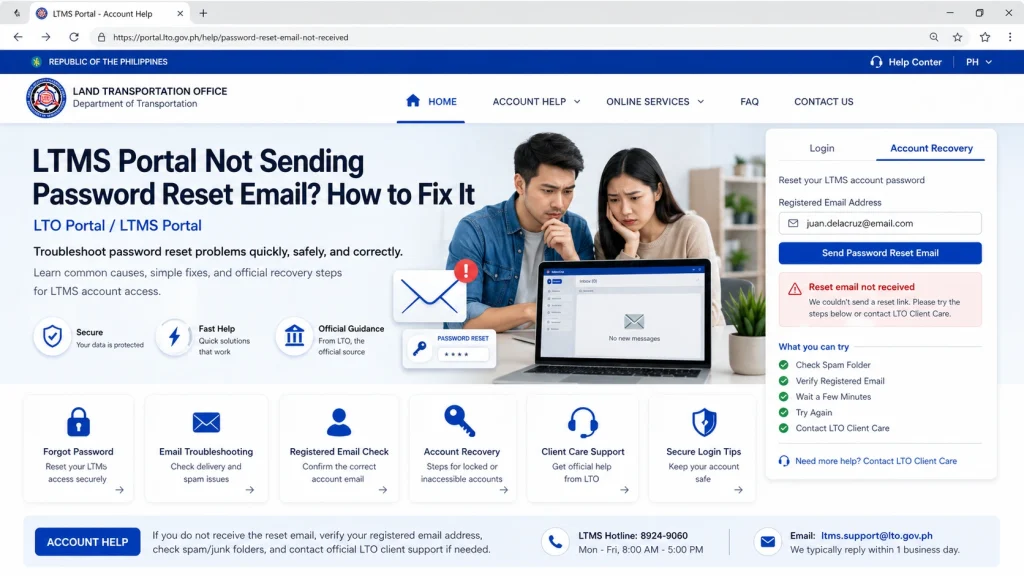
Search for “LTMS”, “LTO”, or “password reset” in your inbox. Check spam, junk, promotions, and social tabs. Sometimes messages get archived and can be found in all mail. Wait 10 to 30 minutes after requesting the reset email.
Go to the official LTMS portal login page and click “Forgot Password?” Enter your registered email address or Client ID and wait 10 to 30 minutes. Do not click the button repeatedly as that may trigger system locks.
Fake portals exist and will not send real emails. Always use the official LTMS website. If you got the link from an SMS or social media, type it manually into your browser.
What to Do If You Still Do Not Get the Reset Email
Some users do not receive the reset link through the normal process. Here are proven ways to get it.
Email LTO Client Care With Proof
Send a message to LTO Client Care with your full name, registered email, Client ID, a photo of your valid ID, and a selfie holding the ID. This helps verify your identity and prompts support to send a reset link manually.
Visit an LTO Branch
If email support does not work, go to any LTO office with your valid ID and any screenshots of the problem. Ask the clerk to reset your LTMS login. Many people get their accounts fixed the same day when done in person.
Safety Tips
Always Use Secure, Official URLs
Never open LTMS links sent from unknown SMS, social media, or random websites. Fake LTMS URLs can steal your information.
Do Not Create a New Account
If you already registered, creating a new account often causes duplicate profiles, login lockouts, or lost records. Always recover the old account instead of making a new one.
The Best Times to Try Resetting
Sometimes timing helps. Try early morning before 9 AM or late night after 8 PM when servers are less busy. Emails tend to arrive faster at these times.
Quick Troubleshooting Checklist
Before requesting support or visiting an LTO office, try this checklist:
FAQs
Conclusion
Not getting the LTMS password reset email is annoying but fixable. Most of the time, the email is hiding in another folder or delayed. If that does not work, try the reset again carefully, email LTO support with your ID, or visit a branch if needed.
By checking your folders, using the right email, and using official links, you can solve this problem quickly.


