
LTMS Portal and Appointment Scheduling: What to Know (2026)
Scheduling appointments through the LTMS Portal is an important part of using Land Transportation Office services online in the Philippines. Whether you need to have your driver’s license renewed, take an exam, or visit an LTO branch for another transaction, knowing how appointment scheduling works can save you time and help you avoid long lines.
This guide explains everything you need to know about LTMS Portal appointment scheduling, including how it works, how to book, common problems, and useful tips for success.
What Is LTMS Portal Appointment Scheduling?
The LTMS Portal appointment system lets users book a specific date and time for certain LTO services before going to an LTO branch. When an appointment is confirmed, you can go to the LTO office at your scheduled time and finish your transaction faster without waiting in long queues.
In most cases, appointment scheduling is required for:
Using the portal for appointments helps organize your visit and reduces crowding in LTO offices.
You can also read: LTMS Portal Not Sending Password Reset Email? How to Fix It
How LTMS Appointment Scheduling Works
Here’s a simple step‑by‑step overview of how appointment scheduling works in the LTMS Portal:
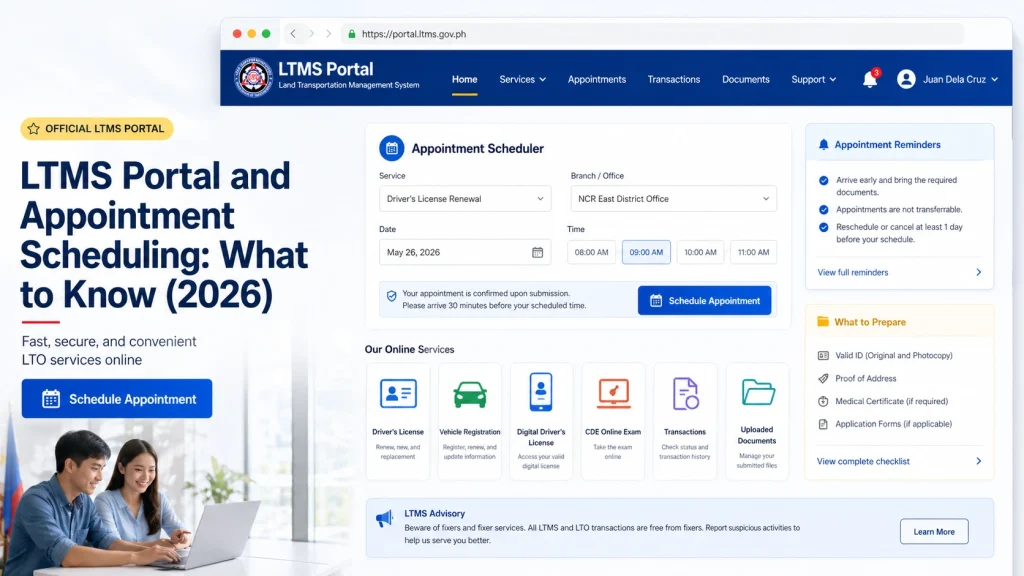
Step 1: Log In to Your LTMS Account
First, go to the official LTMS Portal and log in with your email or Client ID and password. You must be registered before you can schedule an appointment.
Step 2: Find the Appointment Section
Inside your dashboard, look for the appointment scheduling or booking section. This might be labeled “Schedule Appointment,” “Book Now,” or something similar.
Step 3: Choose the Type of Service
Select the service you need, such as:
Driver’s license renewal
New license application
Written or practical exam
Vehicle transaction
Different services may have different appointment options.
Step 4: Pick a Location
Choose the LTO branch or testing center where you want to complete your transaction. Make sure the branch you select offers the service you need.
Step 5: Select Date and Time
Choose the available date and time that works best for you. Available slots may fill up quickly, so it’s good to check early in the day.
Step 6: Confirm Your Appointment
Review your choices and confirm your appointment. The portal should show a confirmation message or send details to your account dashboard.
Step 7: Save Your Appointment Details
Write down or screenshot your appointment details. Some users also receive notifications or email reminders.
What to Bring on Appointment Day
On the day of your appointment, make sure to bring:
Being prepared helps your visit go smoothly.
Common Issues With LTMS Appointment Scheduling
Many users find that appointment slots are full, especially at popular branches. If slots are unavailable:
- Check again early the next day
- Try different branches nearby
- Try different appointment types
Slots open up as others cancel or reschedule.
If you scheduled an appointment but it does not appear in your account:
- Log out and log back in
- Refresh the appointment page
- Check your notifications or dashboard messages
If it still doesn’t show, contact LTO support.
If you accidentally booked the wrong date or time:
- Look for a reschedule option in your dashboard
- Cancel the appointment and book a new one if rescheduling isn’t available
Most portals allow changes up to a certain time before the appointment.
Sometimes the portal becomes slow or unresponsive during high traffic. If the portal freezes or gives errors:
Try again at a less busy time
Try refreshing the page
Clear your browser cache
Use a different browser or device
Tips to Book Appointments Successfully
Here are tips users find helpful when scheduling through the LTMS Portal:
Having your details up to date helps avoid errors during booking.
FAQs
Conclusion
Using the LTMS Portal to schedule appointments makes LTO visits easier and faster by letting you choose your date, time, and branch online. Start by logging in, pick your service and location, find a slot that works for you, and confirm the booking. If you run into issues like no available slots or portal errors, try again later or switch branches.
With the right steps and preparation, you can secure your appointment smoothly and make your LTO transactions more convenient.


