
LTMS Portal Not Working: How to Fix Common Errors Update 2026
Many drivers and vehicle owners in the Philippines use the LTMS Portal to access LTO services like renewing a driver’s license, registering a vehicle, or checking violations. But sometimes the portal does not work or shows errors. This can be frustrating, especially when you need to get things done fast.
This article explains the most common LTMS Portal problems and shows you simple ways to fix them quickly.
What the LTMS Portal Is and Why Errors Happen
The LTMS Portal is the online system of the Land Transportation Office for managing transportation transactions. It depends on internet access, servers, and correct user information.
Errors happen when:
Understanding why the errors happen helps you fix them faster.
You can also read: LTMS Portal Login Problems: How to Resolve Them Fast (2026)
Common LTMS Portal Errors and How to Fix Them
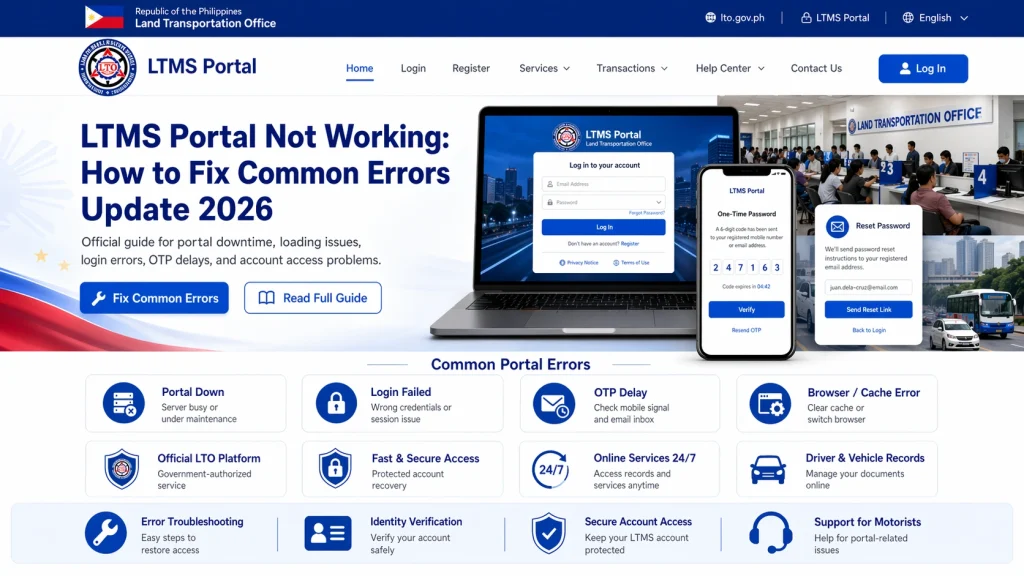
Ithe LTMS Portal page does not load or shows a blank screen, try these steps:
- Refresh the page or close and open your browser again
- Clear your browser cache or cookies
- Try using a different browser (for example, switch from Chrome to Firefox)
- Use a different device, like a mobile phone or tablet
- Try again at a different time because the portal may be busy
Sometimes the portal is slow or offline because many people are using it at the same time. Trying again later often fixes the problem.
If you cannot log in to the portal:
- Make sure you are using the correct email address, client ID, and password
- Check that your account has been verified via email
- Use the “Forgot Password” link if your password does not work
- Check all email folders (spam, junk, promotions) for the reset email
If you still cannot log in, support may help you verify your account or unlock it.
f you use the password reset option but do not get the email:
- Check spam and junk folders
- Wait at least 15 minutes before trying again
- Confirm you entered the same email you used to register
- Try the reset during off‑peak hours
If the email still does not arrive, contact LTO support and ask them to send the reset link manually.
hen you enter the wrong login details too many times, the portal may lock your account temporarily for security. To fix this:
- Wait for some time before trying again
- Contact LTO support to unlock your account
- Avoid entering incorrect details repeatedly
Support can help you unlock your account faster than waiting.
f you cannot complete your registration or verification:
- Check your email for the verification link and click it carefully
- If you cannot find it, use the “Resend Verification Email” option
- Make sure you entered the correct email address when registering
Once your account is verified, you should be able to log in and use the portal.
Sometimes you make a payment or submit a form but the portal does not show the confirmation. This happens when systems are slow or updates are delayed.
What to do:
Contact support if the confirmation does not appear after a day
Wait a few hours and check again
Check your bank or e‑wallet if the payment was charged
Keep receipts or screenshots of your payment
What to Do If None of These Fixes Work
If you have tried all the steps above and the portal still does not work, you have two good options:
Contact LTO Support
Send a message with:
Your full name
Your registered email or client ID
A clear description of the problem
Screenshots or photos of the error
Support can help you fix account issues or inform you of portal outages.
Go to an LTO Branch
If online fixes do not work, visit the nearest Land Transportation Office with:
A valid ID
Any screenshots of the issue
Your client ID or account details
Staff can assist you directly and resolve errors in person.
Quick Tips to Avoid LTMS Errors
FAQs
Conclusion
The LTMS Portal can sometimes have errors, but most issues can be fixed with simple steps. Refreshing the page, clearing browser cache, checking email folders, and using the correct login details usually works. When nothing works, contact LTO support or visit an LTO office for help.
By following these tips, you can resolve common LTMS issues fast and get back to managing your license, vehicle, and transactions with less stress.


