
Why LTMS Renewal Gets Stuck at Payment (Easy Guide 2026)
If you’re trying to renew your driver’s license or vehicle registration on the LTMS Portal and the process gets stuck during the payment step, you are not alone. Many users experience this problem, and it can be confusing and stressful.
In this guide, you will learn the common reasons payment gets stuck, how to fix it, and tips to complete your renewal smoothly next time.
What Does “Stuck at Payment” Mean?
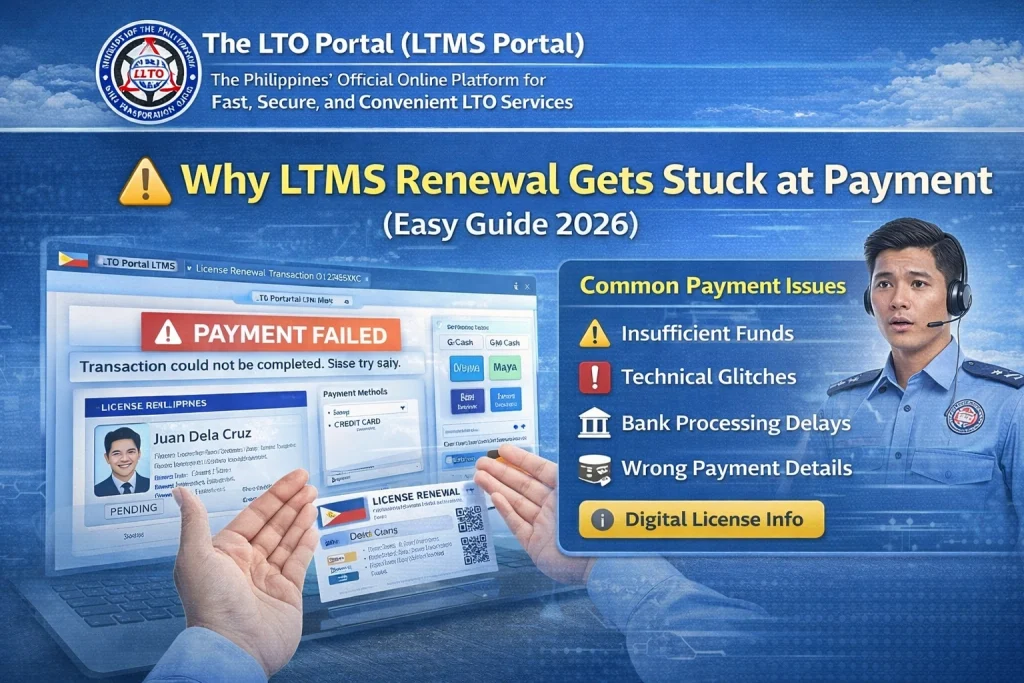
When the LTMS renewal process gets stuck at payment, it means you click the Pay Now button but nothing happens, the page keeps loading, or your payment doesn’t go through. Sometimes the payment looks successful but the portal doesn’t update your renewal status.
You can also read: Can You Use a Digital License at Checkpoints? (2026 Guide)
Common Reasons LTMS Renewal Gets Stuck at Payment
If your internet connection is slow or keeps disconnecting, the payment request might not reach the payment system properly. This can cause the portal to freeze or not respond.
Your web browser stores temporary files that sometimes interfere with the payment screen. Old cache data can block important functions on the portal.
The portal works best on modern browsers like Chrome, Firefox, or Edge. If you are using an old or incompatible browser, the payment page may not load correctly.
Some debit or credit cards require extra security approval before payment goes through. If your bank blocks the transaction or the card lacks online payment support, the payment will not finish and the page may get stuck.
The LTMS Portal may log you out after some time of inactivity. If you spend too much time before reaching the payment page, your session may expire and the payment button will not work.
Sometimes the payment system used by LTMS may experience technical problems. This can make the payment page freeze or fail.
How to Fix LTMS Renewal Stuck at Payment
Here are simple steps you can follow to fix the problem:
Check Your Internet Connection
Make sure your internet is stable. Try switching to Wi‑Fi if you’re using mobile data, or restart your router if connection feels slow.
Clear Your Browser Cache
Old cache files can cause problems with websites.
On Chrome:
Open settings
Go to Privacy and Security
Select Clear Browsing Data
Choose cached images and files
Click Clear
After this, reload the LTMS Portal and try again.
Use a Different Browser
If you are using an old or weak browser, try switching to Chrome, Firefox, or Edge. These browsers are generally supported by the LTMS Portal.
Update Your Browser
If your browser is out of date, update it to the latest version to get better performance and compatibility.
Try a Different Payment Method or Card
If your current card is blocked or has payment restrictions, try another debit or credit card. Make sure your card supports online payments.
Check With Your Bank
Sometimes the bank blocks the payment for security reasons. Call your bank’s customer support and ask them to allow the payment.
Restart the Renewal Process
Close your browser, open it again, and start the renewal from the beginning. Make sure to complete all required fields quickly so the session does not expire.
Try at a Different Time
If the payment gateway is down or slow, try again later when there is less traffic on the portal.
Tips to Avoid Payment Problems in the Future
FAQs
Conclusion
Renewal getting stuck at payment on the LTMS Portal is common, but most cases happen because of internet issues, browser problems, or bank restrictions. By following the steps above, you can usually fix the issue quickly and complete your renewal without frustration.
If the problem continues, try again later or contact your bank for help. With a stable connection and the right browser, your payment should go through and you will complete your renewal successfully.


