
CDE Result Missing in LTMS Portal? What You Should Do (2026)
If you took your CDE (Comprehensive Driver’s Education) exam online through the LTO LTMS Portal and your result or certificate isn’t showing, don’t worry — you’re not alone. Many drivers face this problem because of how the portal updates records and links certificates.
In this guide, I’ll walk you through simple steps to fix it, why it happens, and tips to make sure your result shows up in your LTMS dashboard.
What Is the CDE Result Anyway?
First, the CDE result is the online output from the LTO’s online driver education exam. Passing this exam is usually required for:
Once you finish the exam, a CDE certificate should appear in your LTMS account dashboard under your profile so you can use it for renewal.
You can also read: How to Register Your Car Online in the Philippines (2026)
Why Your CDE Result Might Not Be Showing
Here are the most common reasons your result seems missing:
The certificate hasn’t been uploaded yet
Sometimes the portal takes time to update your records. This can take a few hours or even a day after you finish the CDE exam.
Incorrect account details
If there’s a typo in your name, birthdate, or driver ID when you registered, the system might not link the certificate properly.
Delay in syncing records
The LTMS Portal sometimes updates slower during peak usage (like before renewal deadlines).
Technical error on the portal
Glitches can happen — especially if you logged in while the portal was busy.
How to Fix CDE Result Missing in LTMS? Step-by-Step Guide
Here’s the exact order you should follow — it’s simple:
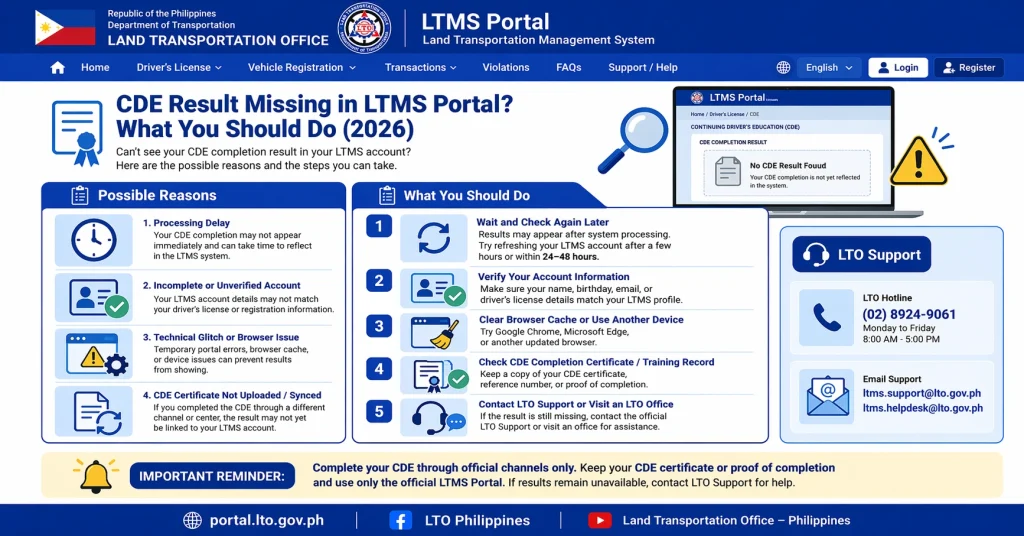
- Before panicking, give it some time. Many users report that results just take a few hours to show up. Refresh your dashboard again after a few hours or the next day.
- Tip: Check it in the morning — after midnight updates often finish overnight.
- Sometimes your session doesn’t refresh properly. Close your browser, reopen it, log in again, and check the “E‑Learning” or “Certificates” section.
- Make sure your name, birthday, and license number in the LTMS Portal exactly match your official documents. Even small typos can prevent the system from showing your certificate.
- Old temporary files can cause pages to load incorrectly.
- How to clear cache quickly on Chrome:
- Go to Settings > Privacy > Clear Browsing Data
- Select Cached images and files
- Click Clear
- After that, sign back into LTMS and check again.
- If nothing works after 24 hours, the next move is to ask for help.
- How to reach them:
- Use the Contact tab inside your LTMS Portal dashboard and send a message explaining your problem.
- Include a screenshot of your CDE completion and your account details.
- If email support doesn’t work or replies slowly, you can also visit the nearest LTO branch and ask them to check the record directly.
- Tip: Bring a valid ID, your exam screenshots, and your LTMS Client ID when you visit the branch.
Tips for Preventing CDE Result Issues in the Future
If you want to avoid facing this issue next time, follow these tips:
Common Problems with LTMS Portal (How to Fix Them)
While the CDE result is one of the most common issues, many users face other challenges when using the LTMS Portal. Here are some common problems and their quick fixes:
Account Creation Issues:
Sometimes you may not be able to register on the portal due to missing or incorrect data. Make sure all the required fields are completed and correct before submitting.
Payment Confirmation Failures:
If your payment for renewal or fines doesn’t reflect, try logging out, clearing your cache, and checking the payment section again after a few hours.
Vehicle Registration Not Appearing:
If your vehicle registration isn’t showing up, ensure that all details match and that the transaction was completed without errors.
FAQs
Conclusion
Not seeing your CDE result in the LTMS Portal can be frustrating, but in most cases, it’s either a delay or a small account mismatch that can be quickly fixed. By following the troubleshooting steps outlined above, you can resolve the issue and keep your records updated without hassle.
Once your result appears, you’ll be able to continue with your license renewal or next steps online smoothly. If all else fails, don’t hesitate to contact LTO support for assistance.


