
LTMS Portal: Fix Data Mismatch Issues Fast Update (2026)
A common issue that many users face when registering or accessing their accounts on the LTMS Portal is a data mismatch. This occurs when the personal information entered in the LTMS Portal does not match the records held by the Land Transportation Office (LTO). If you’ve encountered this problem, don’t worry! We’ll guide you through the reasons behind the mismatch and how to fix it quickly without the need for in-person visits.
What is a Data Mismatch on LTMS Portal?
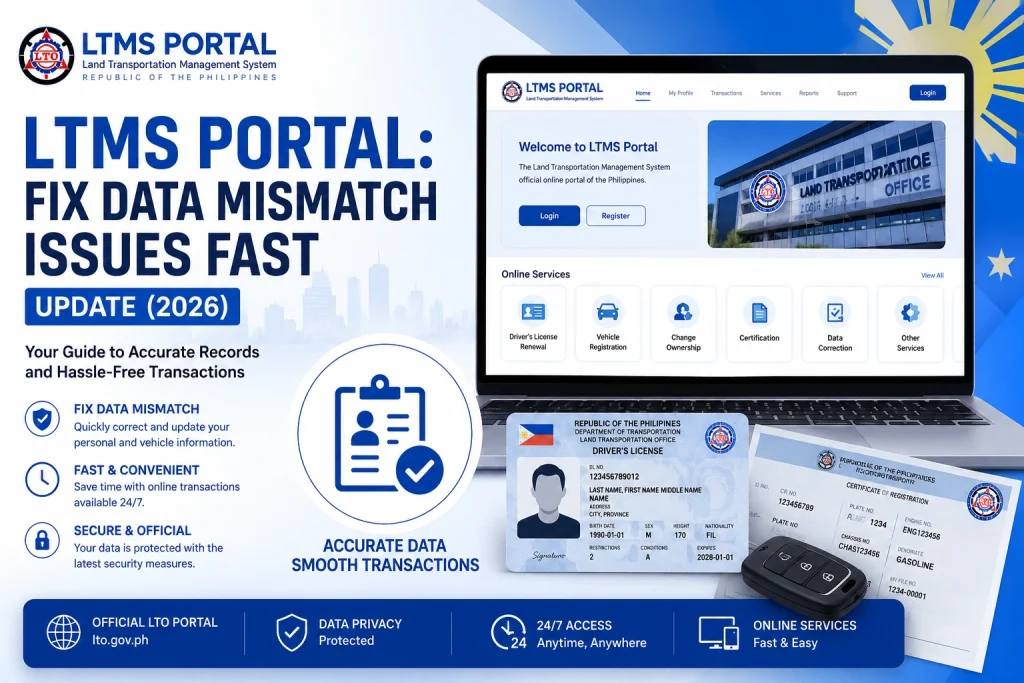
A data mismatch refers to a situation where the information you’ve entered in the LTMS Portal (e.g., name, date of birth, email address, vehicle details) does not match the official records with the LTO. This can prevent you from completing tasks like registration, license renewal, and accessing vehicle details on the portal.
You can also read: Why Is My Vehicle Missing from LTMS Portal Dashboard? (2026)
Common Causes of Data Mismatch
Incorrect Personal Details
If you’ve made a mistake when entering your name, date of birth, or other personal details, the LTMS Portal might not be able to verify your identity against LTO’s records.
Spelling or Typographical Errors
Even a small typo in your name or address can cause the portal to flag a mismatch. Common issues include missing middle names, incorrect hyphenation, or even missing spaces in fields.
Changes in Registered Details
If you’ve recently updated your information with LTO (such as changing your address or phone number), the system might not yet reflect the new information in its records. This causes the data in LTMS to appear mismatched.
Vehicle Registration Discrepancies
A vehicle registration mismatch can occur if the plate number, chassis number, or vehicle make has been entered incorrectly or doesn’t match the LTO records.
How to Fix Data Mismatch on LTMS Portal
- Before attempting any changes, double-check the details you’ve entered in the LTMS Portal. Ensure your name, date of birth, email address, and other personal details are accurate.
- How to fix it:
- Compare the information you’ve entered with the details on your driver’s license or official documents.
- Ensure that you’re entering the exact full name as it appears on your records (including middle names, suffixes, or initials).
- If you find any spelling mistakes, like missing letters or incorrect hyphens in your name, address, or email, correct them immediately.
- How to fix it:
- Go to the LTMS Portal and update the details.
- Pay special attention to names, as even a small variation can lead to verification issues.
- If you are facing a data mismatch related to your vehicle, such as registration details, check the following:
- Plate number
- Chassis number
- Make and model of the vehicle
- How to fix it:
- Ensure that the plate number, chassis number, and other vehicle details you’ve entered match exactly what is listed on the official vehicle registration.
- If you recently bought or sold the vehicle, ensure that your vehicle’s details have been updated with the LTO.
- Sometimes, the data mismatch happens because the LTO database is not updated with recent changes you made (e.g., change of address or update to your ID details). In such cases, you need to verify if the updates were processed successfully by LTO.
- How to fix it:
- Check LTO’s records: If you’ve recently changed your information, visit the nearest LTO branch to ensure that the details are properly updated in their system.
- Visit LTO Online Services: Some information may be updated on the LTO website before being synced with the LTMS Portal, so be sure to check if the system reflects the changes.
- Sometimes, cached data can cause issues when viewing updated information. If your LTMS Portal still shows mismatched data, try clearing your browser’s cache or accessing the portal on a different device.
- How to fix it:
- Clear your browser cache: In your browser settings, find the option to clear cookies and cache, and then log in again.
- Try a different browser or device: Use a different web browser or device (phone, tablet, computer) to see if the data mismatch persists.
When to Contact LTO Support
If you’ve tried the above methods and still face data mismatch issues, it may be time to contact LTO customer support. Here’s when to reach out:
LTO customer service will assist in resolving the issue by verifying your information, fixing any discrepancies, and ensuring your account is synced correctly with the LTO records.
How to contact LTO support:
Via email or phone: Contact LTO through their official customer service contact information on their website.
Submit an online inquiry: If LTO offers an online ticketing system or contact form, fill it out with your details and describe the issue you’re facing.
FAQs
Conclusion
A data mismatch on the LTMS Portal can be a frustrating issue, but it’s usually easy to fix with a few simple steps. By ensuring your personal information is accurate, correcting any typographical errors, and verifying your vehicle registration details, you can resolve most issues quickly. If the problem persists, don’t hesitate to reach out to LTO customer support for further assistance.
By following these steps, you’ll be able to access all the features of the LTMS Portal without any further issues.


