
How to Recover Your LTMS Client ID Quickly Update (2026)
If you forgot your LTMS Client ID and cannot log in to the LTMS Portal, you’re not alone. Many users lose track of their Client ID after registering, and this can stop them from accessing driver’s license renewals, appointment scheduling, violation checks, and other online services.
This guide explains why you might lose your Client ID and gives step‑by‑step ways to recover it quickly so you can get back into your account without stress.
What Is an LTMS Client ID
Your LTMS Client ID is a unique number tied to your account in the Land Transportation Management System. It works like a username and is often needed when logging in, resetting your password, or contacting support.
Even if you registered with an email, some parts of the system may require your Client ID instead of your email address.
You can also read: LTMS Registration: Foreigners Driving in the Philippines 2026
Why People Lose Their Client ID
Here are the most common reasons people forget their Client ID:
The good news is that you can recover your Client ID without too much trouble.
Quick Ways to Recover Your LTMS Client ID
Below are practical steps you can take to find or recover your Client ID quickly.
When you first registered, LTMS should have sent a confirmation message with your Client ID.
Search all email folders using keywords like:
- LTMS
- Client ID
- Registration
- LTO
Also check your spam or junk folder in case the message was filtered incorrectly.
If you find this email, you can note your Client ID and use it to log in or reset your password.
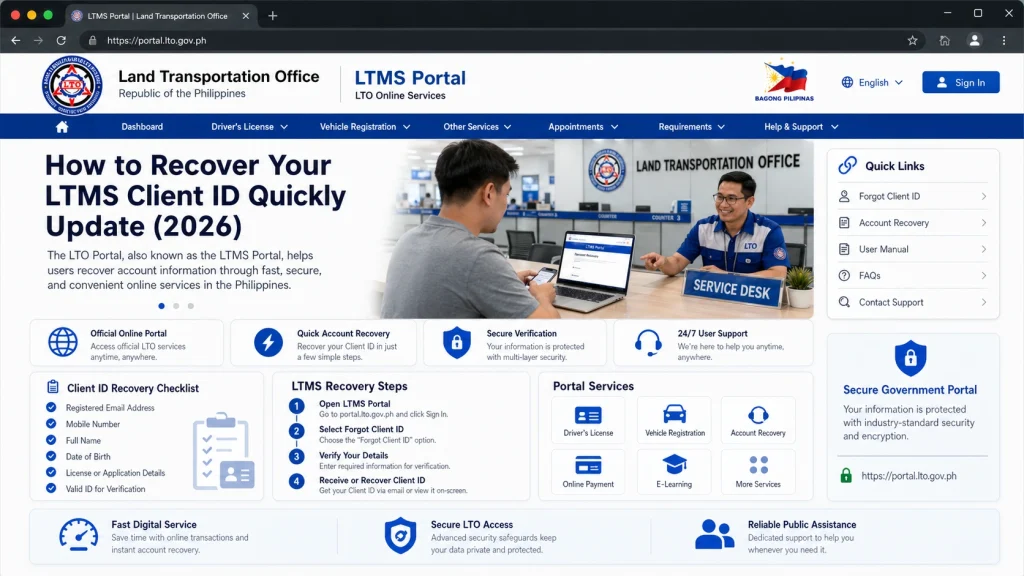
Even without knowing your Client ID, the Forgot Password option on the login page can help.
Instead of entering a password, try these steps:
- Go to the LTMS Portal login page
- Click “Forgot Password”
- Enter your registered email address
- Follow the instructions
Once the system finds your account, it may show parts of your Client ID or send instructions that help you recover it.
If you do not receive a reset email, check all email folders, wait a few minutes, and try again.
Sometimes the system will recognize your account by matching both your email and mobile number.
If the portal asks for multiple pieces of information, enter:
- Your email
- Your mobile number
- Your full name
This can help the system locate your account and reveal your Client ID or give you a way to reset your login.
If email search and password reset tools do not work, the quickest way to get help is to contact support.
When reaching out, be ready to provide:
- Your full name
- Your registered email address
- Your mobile number
- Any old screenshots or details of your account
- A clear description that you need your Client ID
Support staff can locate your account in the system and tell you your Client ID or link your account to a new email if needed.
For faster response, include a copy of your valid ID.
If online help is slow or not responding, visiting the nearest LTO office in person can solve the problem faster.
Bring:
- A valid government ID
- Any old emails or account information you have
- Screenshots of the login page or errors
The LTO staff can verify your identity and look up your Client ID in their system.
This is often the fastest option if you need immediate access.
What to Do Once You Recover Your Client ID
Once you find your Client ID, do these things to avoid losing it again:
Having this information saved makes future logins and resets easier.
FAQs
Conclusion
sing your LTMS Client ID does not mean you lose access to your account permanently. The most reliable ways to recover it quickly are to check your email history, use the portal’s reset tools, and contact support when needed.
If email recovery does not work, visiting an LTO office in person can provide fast assistance.
Once you have your Client ID, save it securely and update your contact details in your profile so you don’t face the same problem again.


