
Step‑by‑Step LTMS Registration: Common Pitfalls Update (2026)
Registering on the LTMS Portal is the first step to accessing many Land Transportation Office services online in the Philippines. With a registered account, you can apply or renew your driver’s license, check vehicle records, view violations, and more — all without long lines at the LTO office.
Many people start registering but get stuck or make mistakes. This guide walks you through the registration process step by step and points out the most common pitfalls so you can avoid them.
What You Need Before You Start
Make sure you have the following before you begin:
Having these ready will make the process smoother.
Step‑by‑Step LTMS Registration
Step 1: Open the LTMS Registration Page
Open your browser and go to the official LTMS Portal registration page. Avoid links from social media or SMS — fake sites exist that look real but don’t work.
Pitfall to Avoid:
Step 2: Accept Terms and Enter the Security Code
You’ll see a terms of agreement screen and a security (captcha) code. Read the terms, check the box, and enter the code exactly as shown.
Pitfall to Avoid:
Step 3: Choose Registration Type
Select the correct option for your situation:
Most users will choose individual.
Pitfall to Avoid:
Step 4: Provide Driver’s License Details (If Applicable)
If you already have a Philippine driver’s license, you’ll be asked to enter:
If you don’t have a license yet, you can skip this part and move to basic personal information.
Pitfall to Avoid:
Step 5: Enter Your Personal Details
Fill in your name, birthday, address, and contact details like your email and mobile number.
Pitfall to Avoid:
Step 6: Email Verification
After submitting your details, an email with a verification link will be sent to the address you provided. Open your inbox and click the link to confirm your account.
Pitfall to Avoid:
Step 7: Set Up Your Profile
Once your email is verified, log in and complete your profile. You may be asked for more details like emergency contact, medical information, or preferences.
Pitfall to Avoid:
Step 8: Log In With Your New Account
After completing your profile, use your email (or client ID) and password to log in.
Pitfall to Avoid:
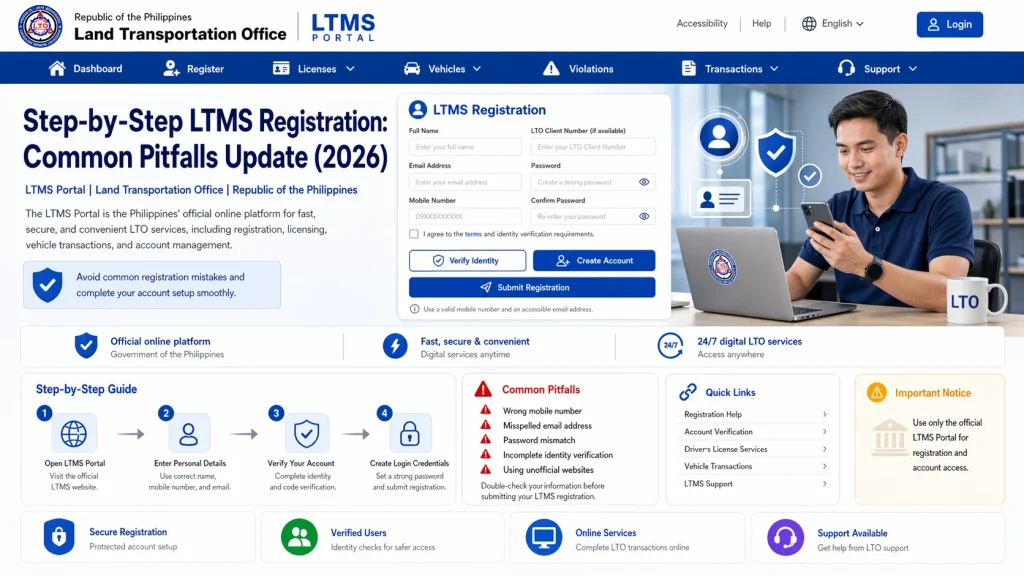
Common Pitfalls and How to Avoid Them
Mistake 1: Typing the Wrong Email
If your email is entered incorrectly, you’ll never receive the verification link or important account notices.
Fix: Double‑check your email before submitting.
Mistake 2: Not Checking All Email Folders
Verification and reset emails often end up in folders other than your inbox.
Fix: Check spam, junk, promotions, and “All Mail” folders.
Mistake 3: Using Multiple Emails
Registering with different emails creates confusion and may lead to duplicate accounts.
Fix: Use one email you check regularly and stick with it.
Mistake 4: Skipping Required Fields
Leaving required fields blank stops the registration from moving forward.
Fix: Enter accurate and complete details in every required field.
Mistake 5: Creating Multiple Accounts
Some users think a second account will fix problems, but it often causes login issues and lost records.
Fix: Recover your original account instead of making a new one.
You can also read: How to Reset LTMS Portal Password Without an Email (2026)
FAQs
Conclusion
Registering for the LTMS Portal is simple if you follow the right steps and avoid common mistakes. Take your time to enter accurate details, use your active email, verify it properly, and complete your profile.
Avoiding common pitfalls like wrong emails, missed verification messages, and duplicate accounts will help you finish registration smoothly.
Once registered, you’ll be able to use the LTMS Portal for many important LTO transactions without having to visit an office in person.


