
Vehicle Not Showing in LTMS? Fix It Fast Latest Update (2026)
Are you trying to access your vehicle details on the LTMS Portal but your vehicle isn’t showing up? Don’t worry, you’re not alone. This is a common issue that many users face while using the Land Transportation Management System (LTMS) Portal in the Philippines. Luckily, there are simple steps you can take to resolve it quickly.
Why Isn’t My Vehicle Showing in LTMS?
First, let’s understand why this might happen. The LTMS Portal should automatically display your vehicle records when you log in. However, there are several reasons why this might not happen:
Incomplete Vehicle Registration:
Your vehicle’s registration might not have been fully processed or updated in the LTMS system.
Technical Glitches:
Sometimes, system bugs or temporary downtime can cause your vehicle details to not show up.
Incorrect Information:
If the vehicle’s details you entered in the portal don’t match the official records, it may not appear.
Data Sync Issues:
The LTMS system may not have synced your data properly, especially if you recently registered your vehicle or made changes to your registration.
You can also read: Why Your Car Record Is Missing in LTMS? Easy Solution (2026)
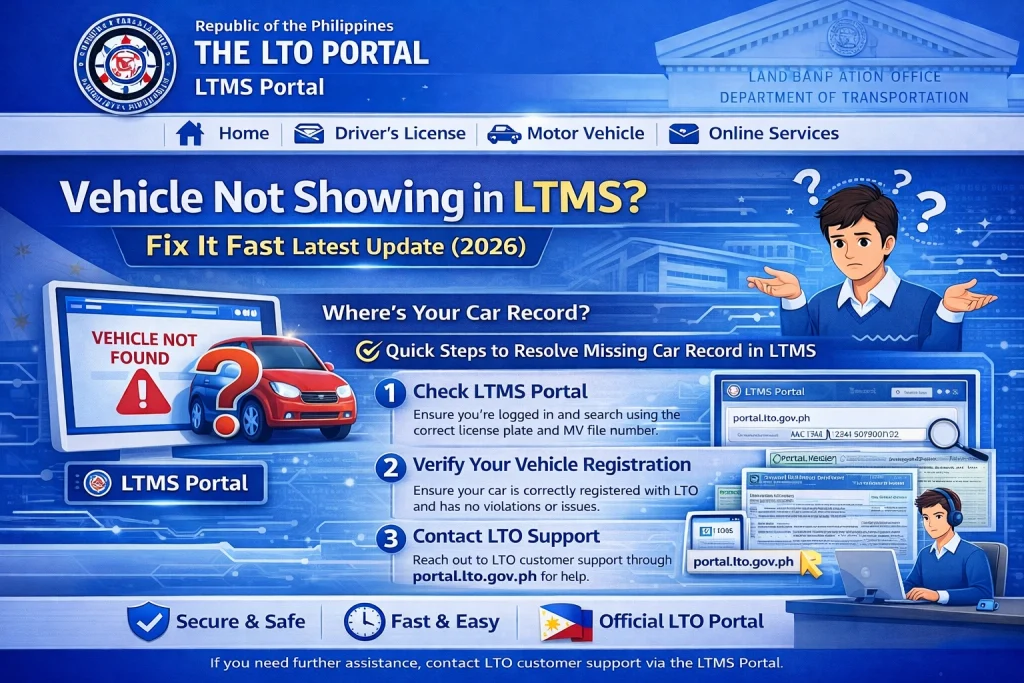
Steps to Fix the Problem:
Now that you know why your vehicle might not show up, let’s walk through a few simple fixes:
Double-Check Your Information
Before doing anything else, ensure that all the details you entered in the LTMS Portal are correct. This includes:
License Plate Number: Make sure it’s entered exactly as it appears on your vehicle’s registration.
Chassis Number & Engine Number: These should be correct as per your vehicle’s official documents.
Even a small mistake can cause the system not to find your vehicle. So, double-checking this information is the first step.
Refresh the Page or Clear Cache
Sometimes, simple technical issues like a slow internet connection or your browser’s cache can cause the vehicle not to appear. Try these fixes:
Refresh the page: Hit the reload button on your browser and see if your vehicle shows up.
Clear your cache: Sometimes, your browser’s stored data might be outdated. Clear your browser’s cache and cookies to ensure you’re seeing the latest version of the LTMS Portal.
Check System Updates or Server Maintenance
The LTMS Portal occasionally undergoes maintenance or system updates, which can cause temporary issues. Here’s what to do:
Check for system downtime: Visit the official LTO (Land Transportation Office) Facebook page or their website for any service advisories or maintenance notifications.
Try again later: If the system is down, give it some time and try again after a few hours or the next day.
Verify Your Vehicle’s Registration Status
If your vehicle still isn’t showing up, you might want to verify your registration status. Here’s how you can do that:
Contact LTMS Support
If the previous steps didn’t work, it’s time to get help directly from LTMS. Here’s how to contact them:
Tips to Avoid This Problem in the Future
To ensure your vehicle is always visible in the LTMS Portal, try these tips:
Update your details regularly: If you’ve changed your vehicle’s information, such as a new owner or updated contact details, make sure to update them in the LTMS Portal as well.
Use the mobile app: The LTO LTMS mobile app can be a more reliable way to access your records. Download it from the Google Play Store or Apple App Store for easy access.
Keep your documents handy: In case of any issues, having your vehicle’s official documents will help LTO resolve the problem faster.
FAQs
Conclusion
If your vehicle isn’t showing in the LTMS Portal, don’t panic. By following these simple steps, you can quickly fix the issue and get back to using the portal without any hassle. Double-check your details, refresh the page, and contact support if needed. With a little patience, you’ll be able to resolve the issue and enjoy seamless access to all your vehicle’s records in the LTMS Portal.


