
LTMS Account Locked After Failed Logins: How to Unlock Quickly
If your LTMS account is locked after multiple failed login attempts, you are not alone. Many drivers face this issue when they forget their password, type it incorrectly several times, or encounter verification problems. The good news is that it can be resolved quickly if you follow the right steps.
Why LTMS Locks Accounts
The LTMS portal locks accounts to protect your personal information and prevent unauthorized access. Some common reasons include:
Repeated wrong password entries:
Entering your password incorrectly several times triggers a temporary lock.
Incorrect Client ID or email:
Using the wrong credentials multiple times can block your account.
Suspicious activity:
Logging in from a new device or location may activate security measures.
Pending verification steps:
Accounts without email verification or incomplete registration may be temporarily restricted.
Understanding these reasons helps you avoid future lockouts and know what steps to take when it happens.
You can also read: LTMS Portal Password Reset Tips & Tricks Latest Update 2026
Quick Steps to Unlock Your Account
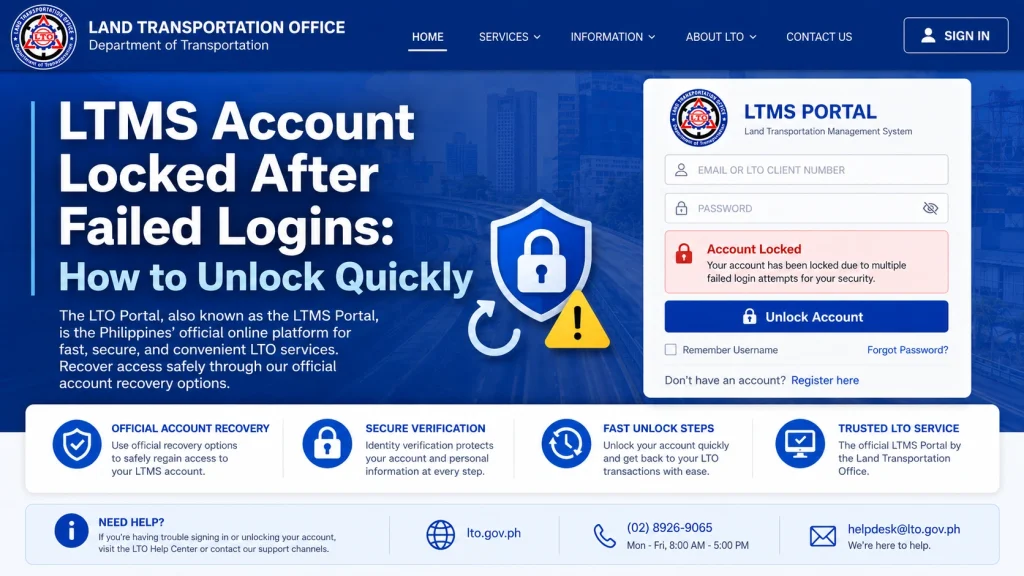
Sometimes the lock is temporary, usually lasting 15–30 minutes. Close your browser, wait a few minutes, and then try logging in again. Avoid guessing your password repeatedly during this time, as it can extend the lock.
Click the “Forgot Password” link on the login page.
Enter your registered email or Client ID.
Follow the instructions in the email to reset your password.
Tip: Check your spam or promotions folder if you do not receive the email immediately. Resetting your password correctly usually unlocks the account automatically.
If password reset does not work, reach out to LTO support via email or hotline. Provide:
- Your full name
- Registered email address
- Client ID if available
- A valid ID for verification
This helps them verify your identity quickly and manually unlock your account if needed.
In some cases, online support cannot unlock your account due to security protocols. Visit a branch with your ID and account information. Staff can manually reset your password and ensure your account is fully functional. This is often the fastest solution for persistent lockouts.
How to Prevent Future Lockouts
Implementing these simple habits reduces the chances of being locked out again.
Understanding LTMS Security Measures
LTMS has strict security measures to protect drivers:
Knowing how LTMS enforces security helps you act faster if your account is locked.
Tips for Fast Resolution
These steps help speed up the resolution process.
What to Do If You Suspect Unauthorized Access
Sometimes accounts are locked because LTMS detects unauthorized login attempts. If you suspect someone else tried to access your account:
This ensures your personal information and driving records remain safe.
Understanding Temporary vs Permanent Locks
Not all locks are the same:
Knowing this difference helps you decide whether to wait or contact support immediately.
FAQs
Conclusion
A locked LTMS account can be stressful, but it is easily resolved. Start with the password reset, reach out to LTO support if needed, and visit the branch as a last resort. Keep your login details safe, watch for fake links, and follow these tips. Being calm, prepared, and following the steps carefully ensures you regain access quickly and avoid future lockouts.


