
Missing Driving Course Certificate in LTMS? Easy Fix (2026)
You finished your driving course, but when you open your LTMS account, the certificate is missing.
This usually happens with TDC, PDC, or CDE certificates.
Do not panic. Most of the time, the certificate is not lost. It may not be uploaded yet, it may be linked to the wrong LTMS Client ID, or the portal may just need time to update.
Quick Answer
If your driving course certificate is missing in LTMS, first check the Certificates, Documents, and Transactions sections. If it is still not there, contact your driving school and ask if they already uploaded or electronically transmitted your certificate to LTMS. LTO rules require driving course certificates such as TDC and PDC to be electronically transmitted to the LTO system.
You can also read: LTMS Portal Payment Not Reflected? Solutions Update 2026
Why Your Certificate Is Missing
This is the most common reason.
After you finish your course, the driving school may still need to encode or upload your certificate. Some users report waiting because the school has a queue for uploading certificates.
Your certificate may be uploaded, but under the wrong Client ID.
This can happen if:
Your name or birthday was encoded incorrectly
You gave the wrong Client ID
You used another email
You have duplicate LTMS accounts
If you created more than one LTMS account, the certificate may appear in the other one.
Do not keep creating new accounts. It can make the problem harder to fix.
Sometimes the upload is done, but LTMS does not show it immediately.
Wait a bit, log out, clear your browser cache, and check again.
Some users expect the certificate to appear on the homepage. It may be under Certificates, Documents, or connected to a license application transaction.
How to Fix It Missing Driving Course Certificate
Step 1: Check the correct LTMS sections
Log in to the official LTMS Portal and check:
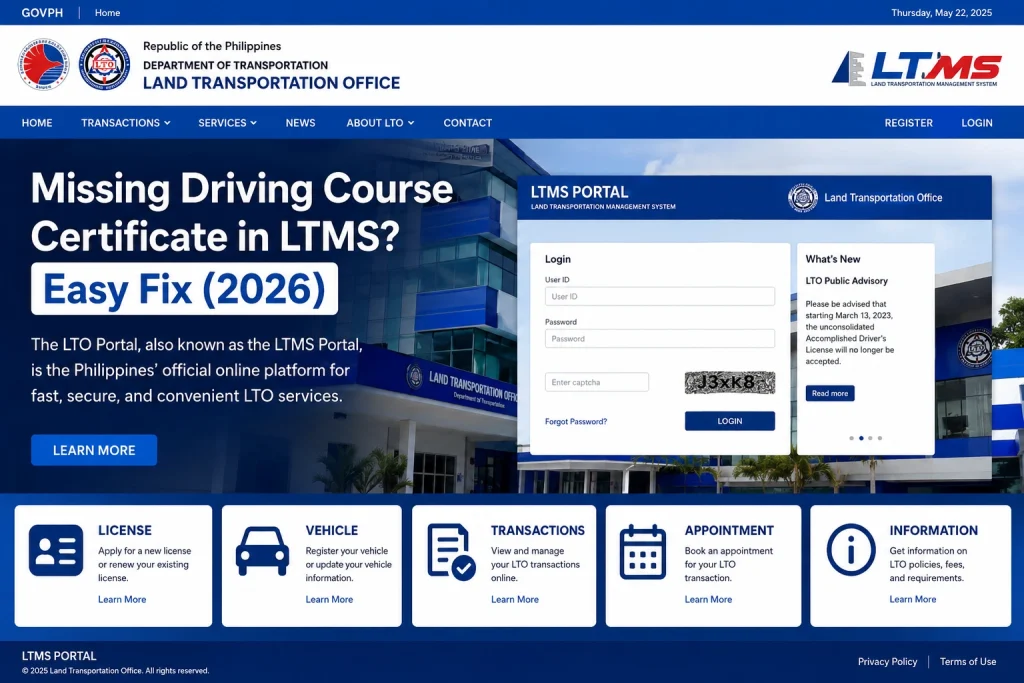
The official LTMS portal includes login, registration, e-learning, and contact options.
Step 2: Ask your driving school first
For TDC and PDC, contact your driving school and ask:
“Has my certificate already been uploaded or transmitted to LTMS?”
Give them your:
Step 3: Ask them to correct wrong details
If they uploaded the certificate but it is still missing, ask them to check the encoded details.
Common mistakes include:
Step 4: Check if you used an old or duplicate account
Try to remember if you created another LTMS account before.
If your certificate is linked to the wrong account, you may need help from LTO Client Care or your driving school to correct the record.
Step 5: Contact LTO if the school already uploaded it
If your driving school says they already uploaded the certificate but you still cannot see it, contact LTO Client Care through the LTMS Contact page.
Use this email:Missing Driving Course Certificate in LTMS
Missing Driving Course Certificate in LTMS
Dear LTO Client Care,
Good day.
I would like to request assistance because my driving course certificate is not appearing in my LTMS account.
Here are my details:
Full Name:
LTMS Client ID:
Registered Email Address:
Birthday:
Course Type: TDC / PDC / CDE
Driving School Name:
Date Completed:
Certificate Number, if available:
I have attached my proof of completion, valid ID, and screenshot of my LTMS account showing that the certificate is missing.
Kindly help verify and update my LTMS record.
Thank you.
Sincerely,
Your Name
What Proof Should You Prepare?
Prepare clear copies of:
What If It Is a CDE Certificate?
CDE is different from TDC and PDC.
The CDE Online Validation Exam is used for driver’s license renewal. The official LTMS exam page says the CDE exam is for renewal applications and requires a passing score to create a certificate.
If your CDE certificate is missing:
Quick Checklist
Before going to LTO, check this:
FAQs
Conclusion
For missing TDC or PDC certificates, your driving school is usually the first place to contact. For missing CDE certificates, check the LTMS E-Learning and exam section first.
The fastest fix is simple: get your correct LTMS Client ID, ask the school to verify the upload, and keep screenshots as proof.


